Customer reviews
The Reviews tab shows ratings and comments left by customers after their visit or order. Use it to spot issues early and thank guests who leave positive feedback.
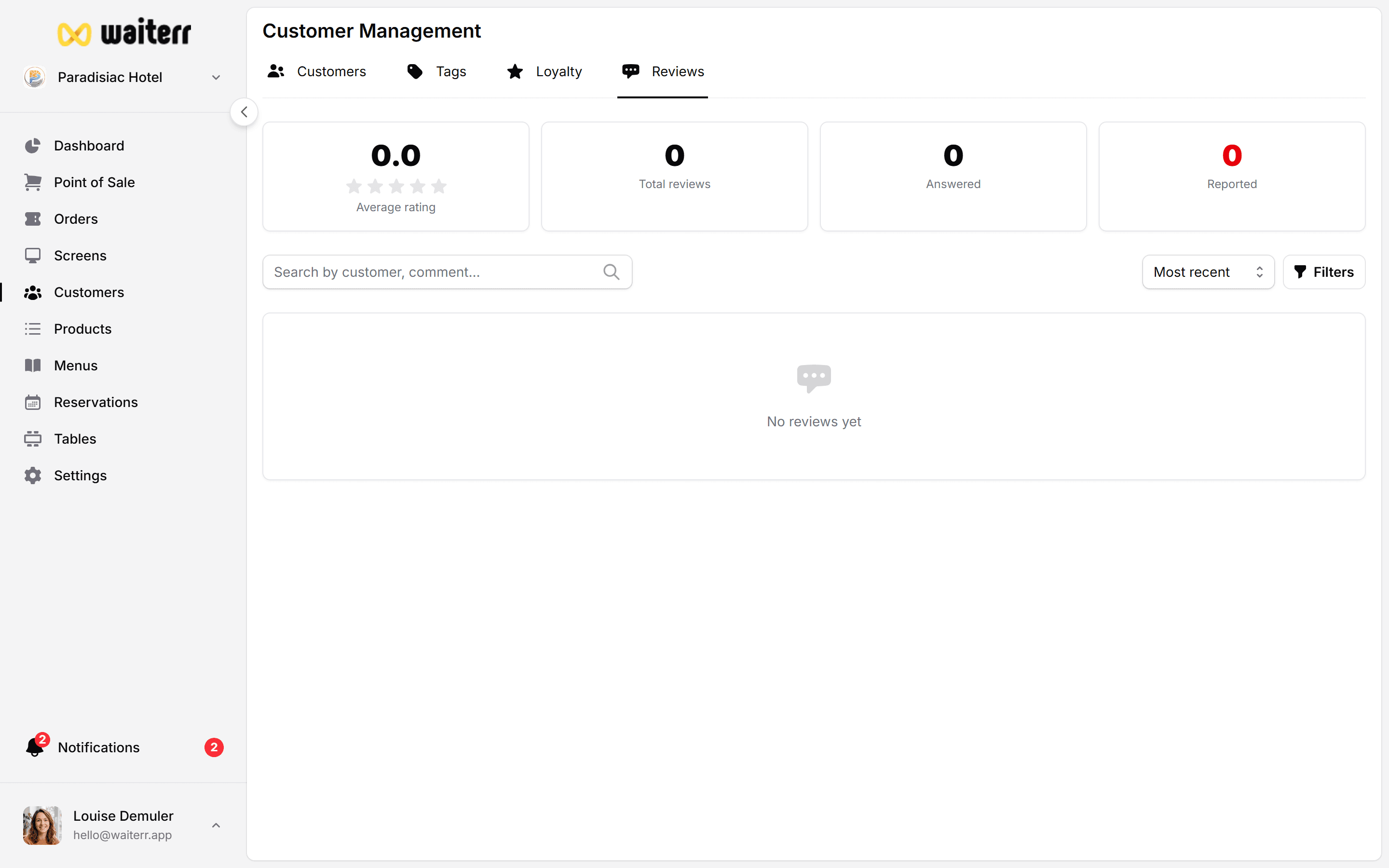
Where to find reviews
- Open Customers in the left menu
- Click the Reviews tab (next to Customers, Tags, Loyalty)
You’ll see:
- Average rating and total count
- Distribution (how many 1-star, 5-star, etc.)
- A list of each review with date, rating, comment, and linked order
Understanding the dashboard cards
Filtering reviews
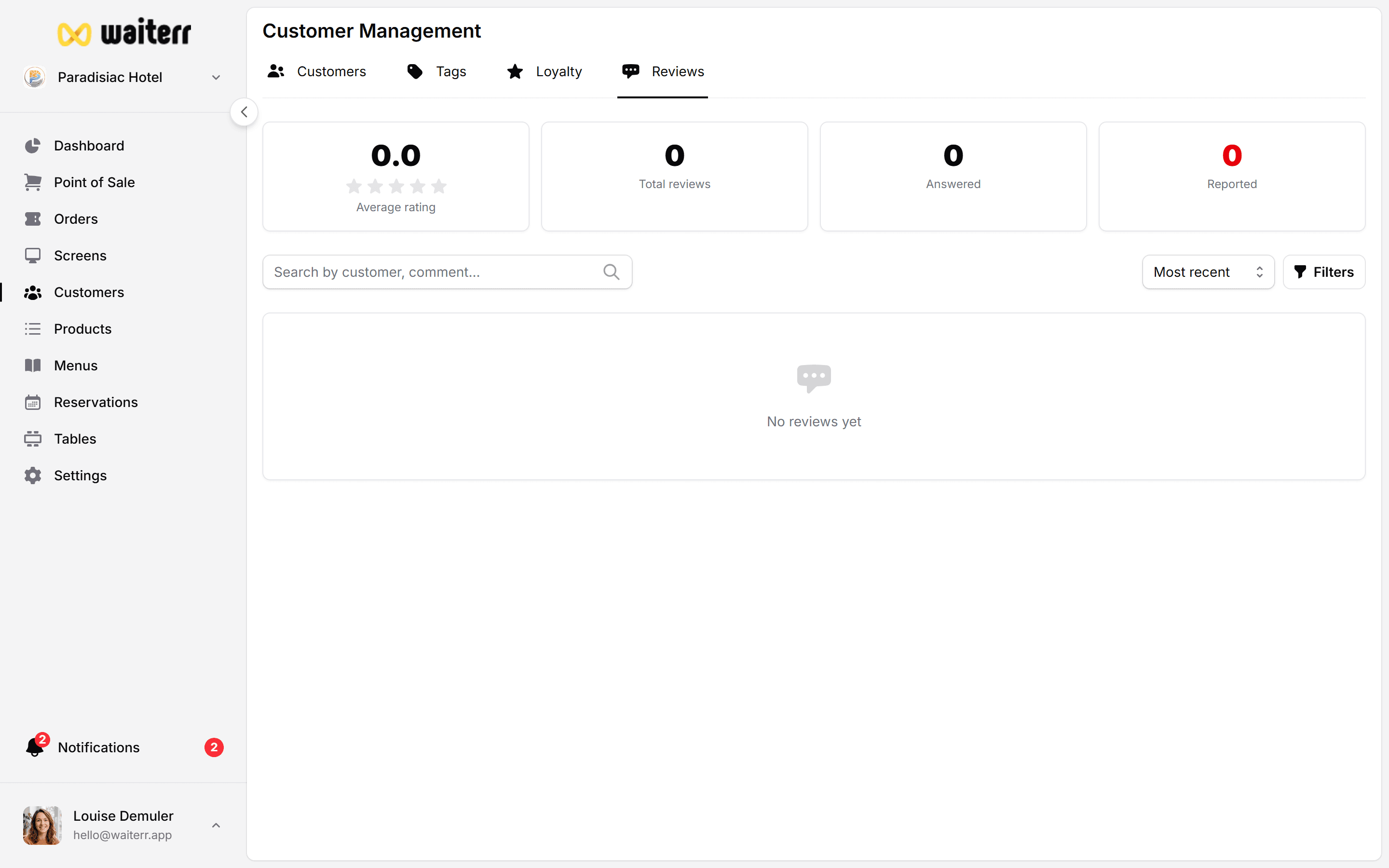
Use the search bar and filters to find:
- Low ratings (1–2 stars) — fix problems quickly
- Recent reviews — daily check habit
- Reviews with text — more detail than stars alone
Responding to a review
- Click a review to open details
- Read the linked order context if available
- Add an internal note for your team (not visible to the customer)
- Flag or resolve if you use moderation workflow
Replying to guests in person or by email often works better than a public reply — use reviews as a signal, not only a marketing channel.
Best practices
💡 Check reviews once per service (lunch / dinner)
💡 Train staff: a bad dish tonight becomes a bad review tomorrow
💡 Link recurring complaints to product or KDS issues
💡 Celebrate 5-star reviews with your team — morale matters
Related pages
Last updated on