Printer Setup
Waiterr supports multiple printer types for receipts and production tickets.
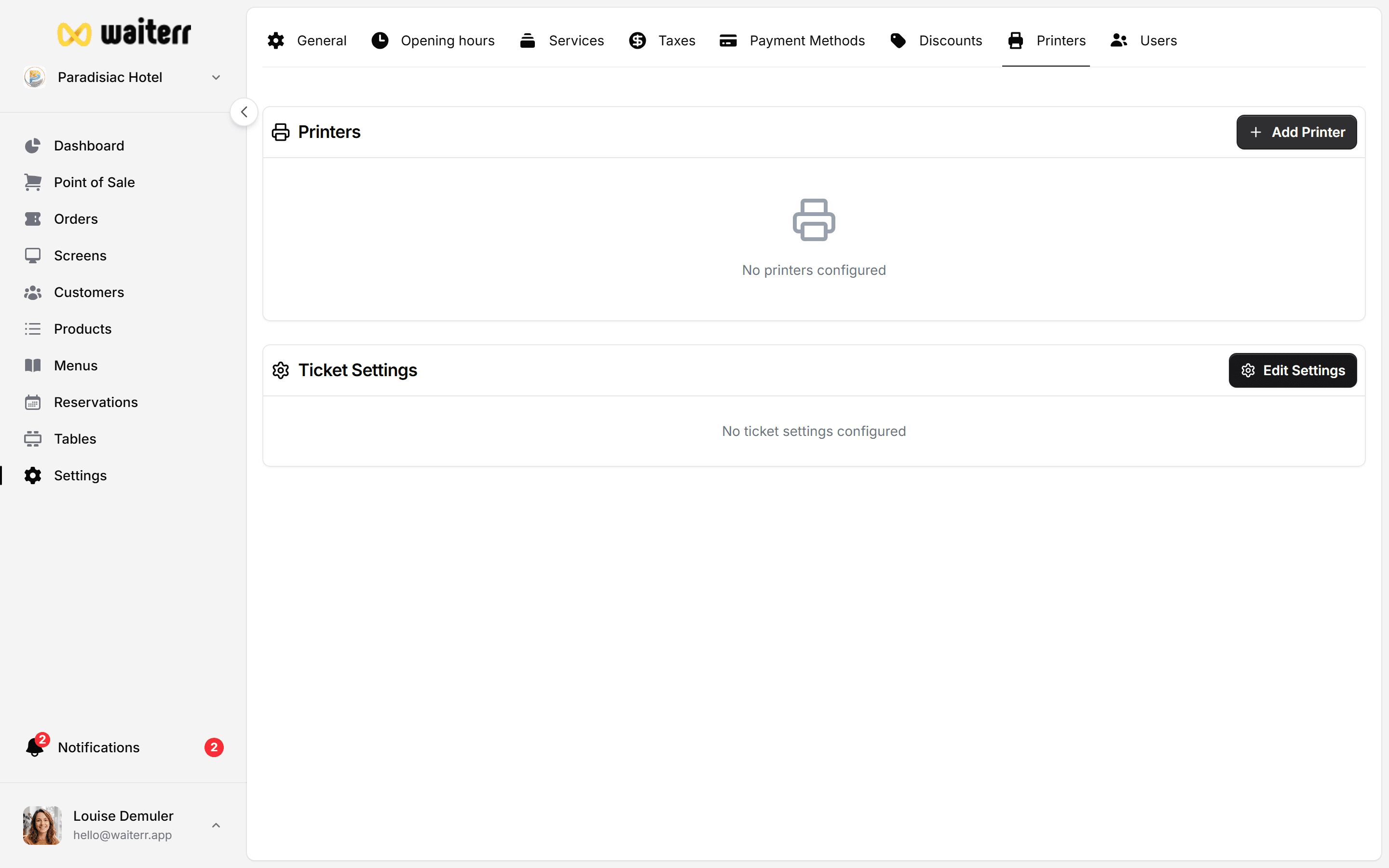
Supported Printer Types
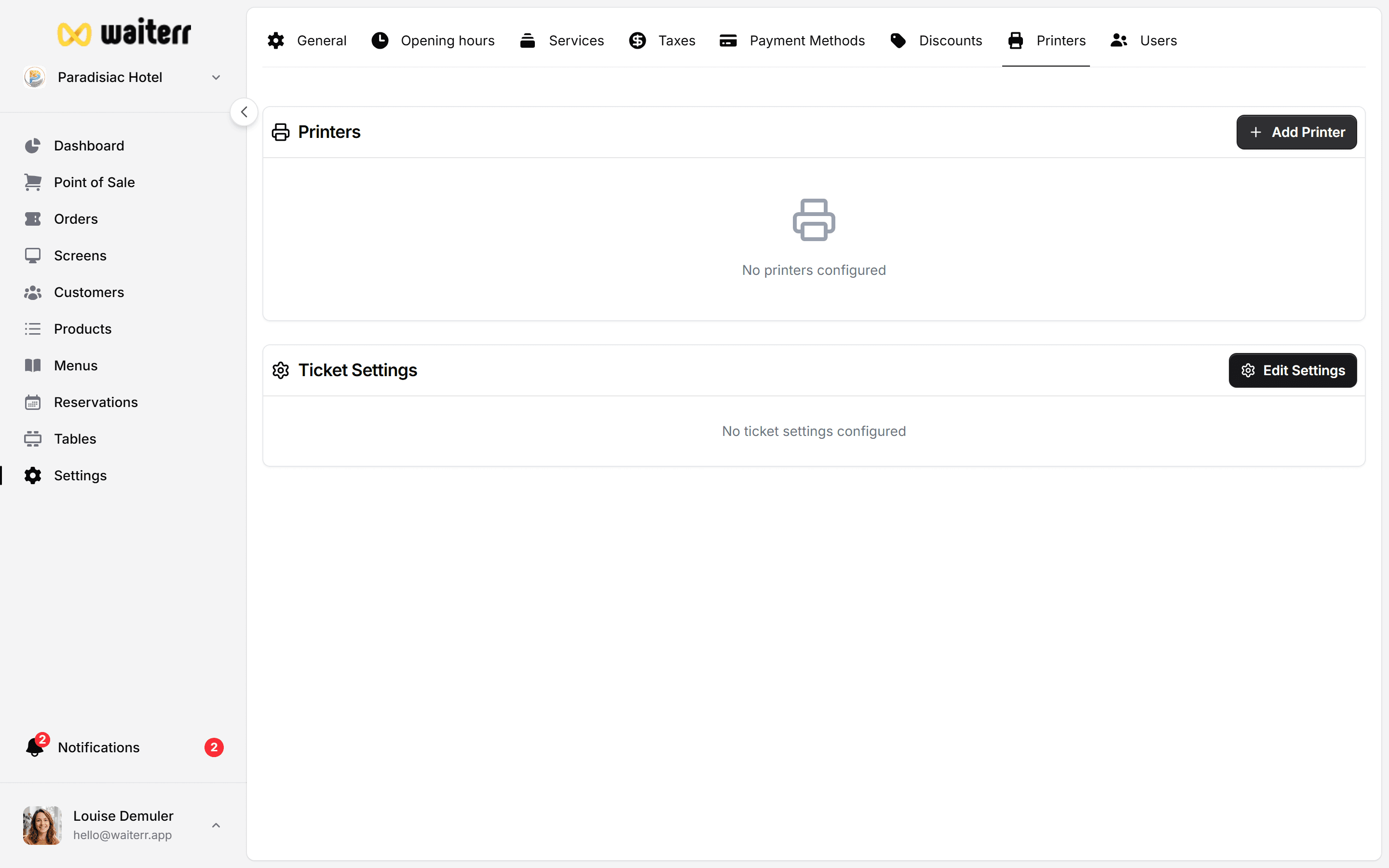
Adding a Printer
Go to:
Settings → Printers → Add Printer
You will be asked to configure:
- Printer name
- Identifier
- Description
- Printer type
- Network details
- Paper size
- Protocol
- Auto-cutter settings
- Linked KDS (optional)
Network Printer (LAN)
Requires:
- IP address
- Port (usually 9100)
- Protocol: RAW / IPP / LPD
Typical setup:
IP: 192.168.1.25 Port: 9100 Protocol: RAW Paper size: 80mm
yaml Copier le code
USB Printer
Requires:
- USB connection to POS device
- Supported drivers
- Browser compatibility
Cloud Printer
Used when:
- Kitchen is remote
- Events with dynamic setup
- Internet-based printing needed
Requires cloud provider setup.
Push Printer
Advanced printer requiring:
- Technician onboarding
- Local installation
- Push notification settings
Used in large venues.
Link Printer to KDS
You can link a printer to a preparation screen:
Example:
- Kitchen printer → only kitchen products
- Bar printer → only bar products
Related Pages
Last updated on