User Interface Overview
The Waiterr Manager interface is designed to be intuitive and fast to navigate, even for first-time users.
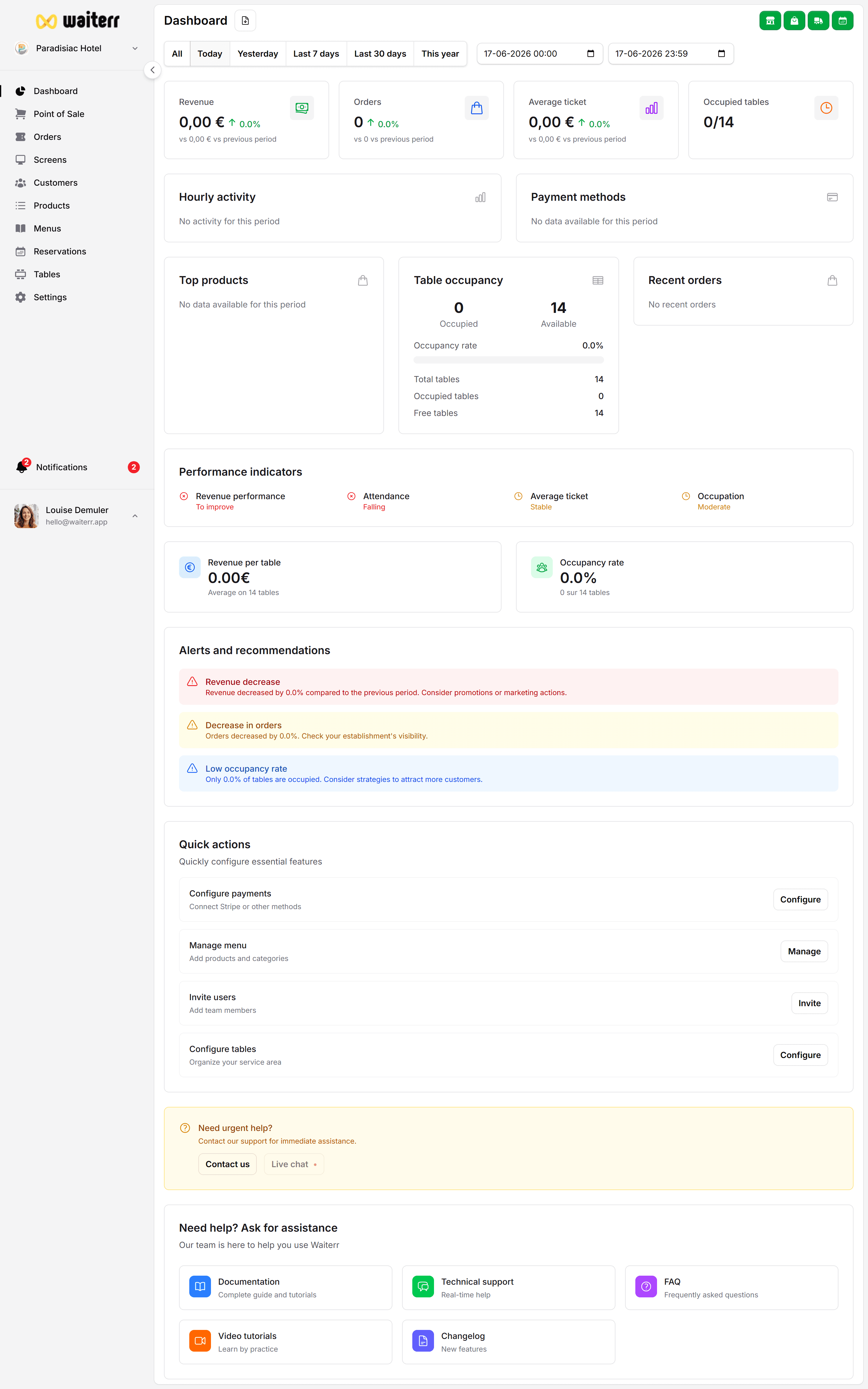
Layout Overview
The interface has three main areas:
1. Sidebar Navigation (left)
Contains all feature modules:
- Dashboard
- POS
- Orders
- Screens (KDS & client displays)
- Products
- Menus
- Tables
- Clients
- Settings
- Users
You can collapse the sidebar for a minimal view.
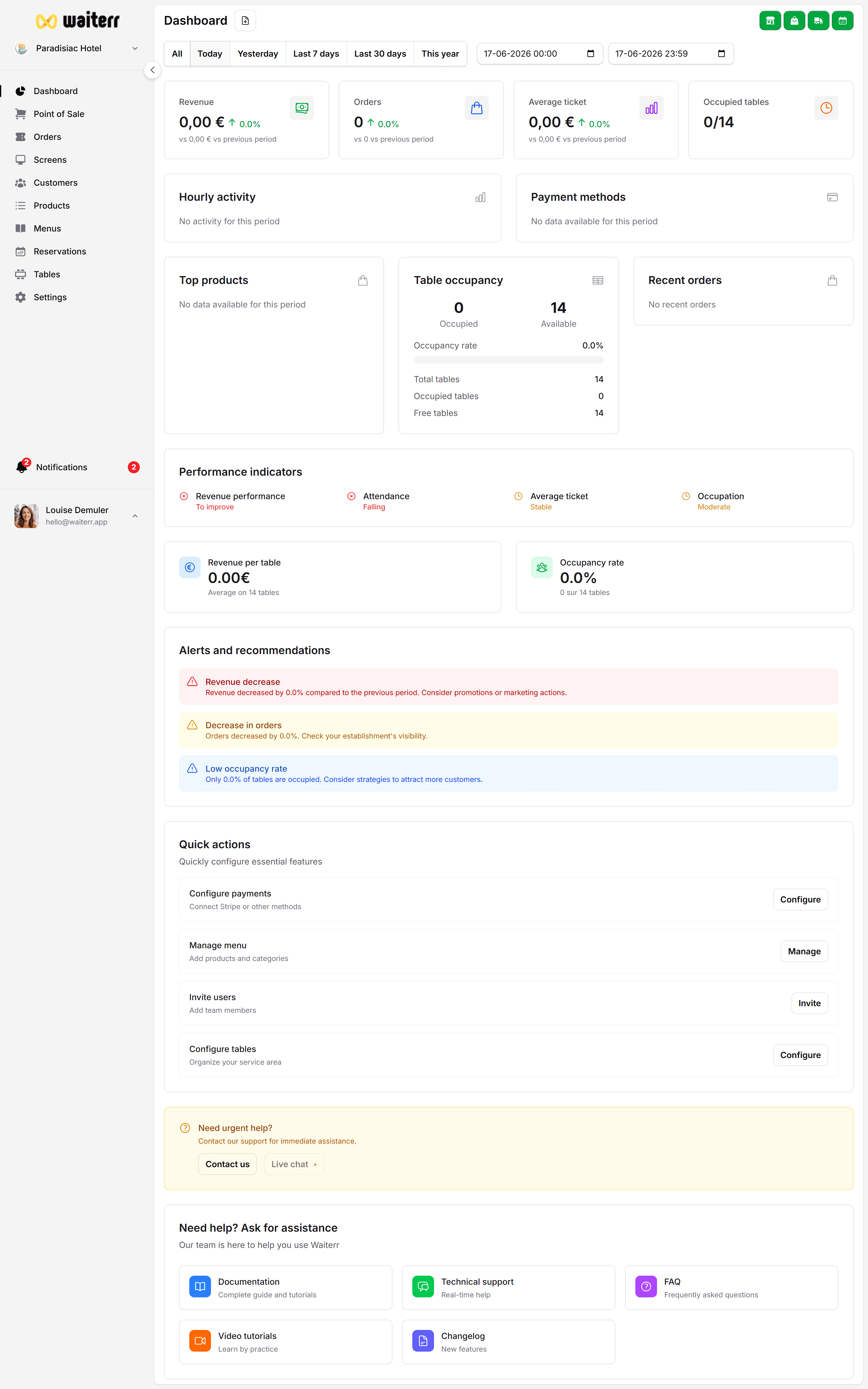
2. Main Content Area (center)
This is where all pages are displayed:
- Lists
- Configuration screens
- Editors (product, menu, screens)
- Dashboards
- Order details
3. Profile & Language (bottom-left or top-right)
Click your profile picture to access:
- Profile settings
- Language selection
- Billing
- Notifications
- Logout
Learn more →
Account & Profile Settings
Navigation Tips
💡 Tip: Use the sidebar icons to quickly jump between features.
💡 Tip: On mobile, the sidebar transforms into a slide-out menu.
💡 Tip: Many screens include “Quick Actions” at the top right.
What to explore next
Once you’re familiar with the UI, we recommend continuing with:
👉 Dashboard Overview
👉 Menu Builder
👉 Product Management
👉 POS (Take Orders)
Last updated on