Table groups
Table groups let you combine several tables into one logical unit — for large parties, merged terraces, or reservations that need more seats than a single table.
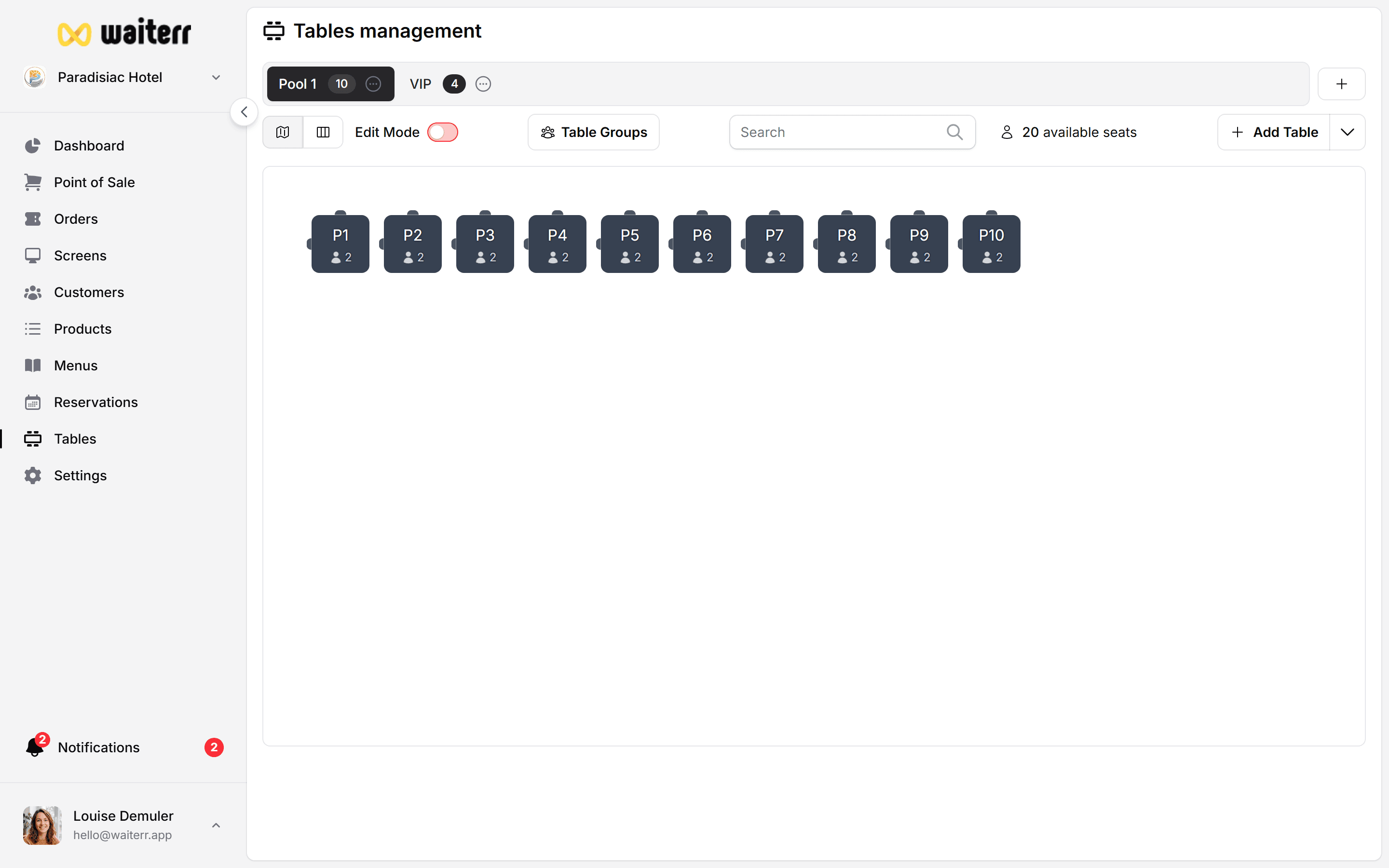
Why use table groups?
- Big parties — “Table 5 + 6 + 7” seats 12 people together
- Reservations — book the whole group online or on the reservation board
- POS — one group = one order covering multiple physical tables
- Floor plan — see grouped tables as a single block on the plan
Step by step — create a group
- Go to Tables
- Open the Table groups panel (icon with grouped people, or side panel on desktop)
- Click Add group
- Enter a name (e.g. “Terrace party zone”, “VIP corner”)
- Select tables to include in the group
- Save
The group shows total seats (sum of all tables in the group).
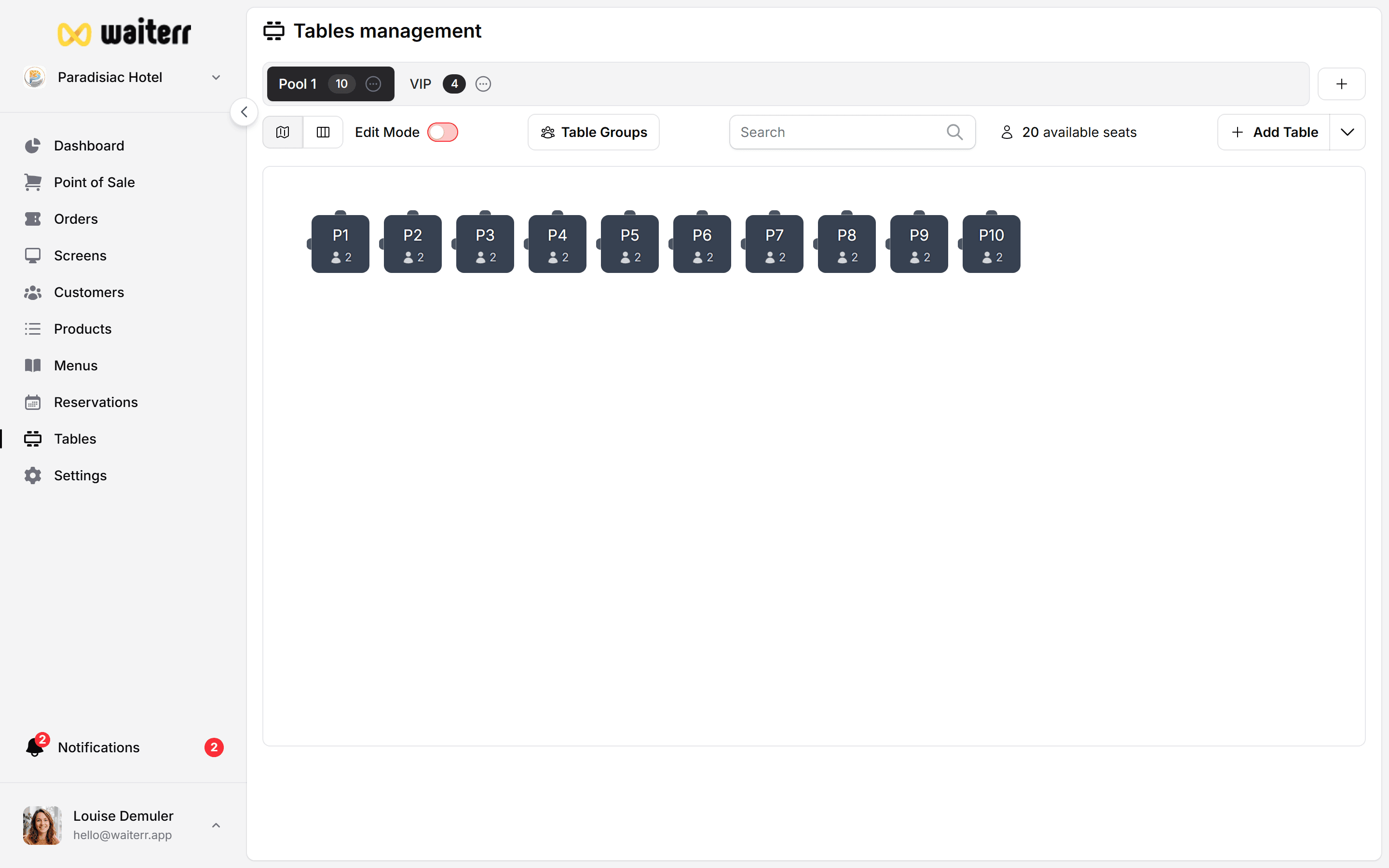
Edit or delete a group
- Edit — add/remove tables, rename
- Delete — removes the group only; individual tables stay on the plan
Deleting a group does not delete orders. Active orders stay on the tables they were opened on.
Using groups in daily service
Tips
💡 Name groups by capacity: “Zone 8p” helps hosts pick quickly
💡 Don’t overlap groups — a table should belong to only one active group
💡 Update groups when you change the floor plan
Related pages
👉 Floor plan editor
👉 Managing reservations
👉 Select table in POS
Last updated on