Import & export tables
If you have many tables or multiple venues, you can export your table layout to a file and import it elsewhere — instead of creating each table by hand.
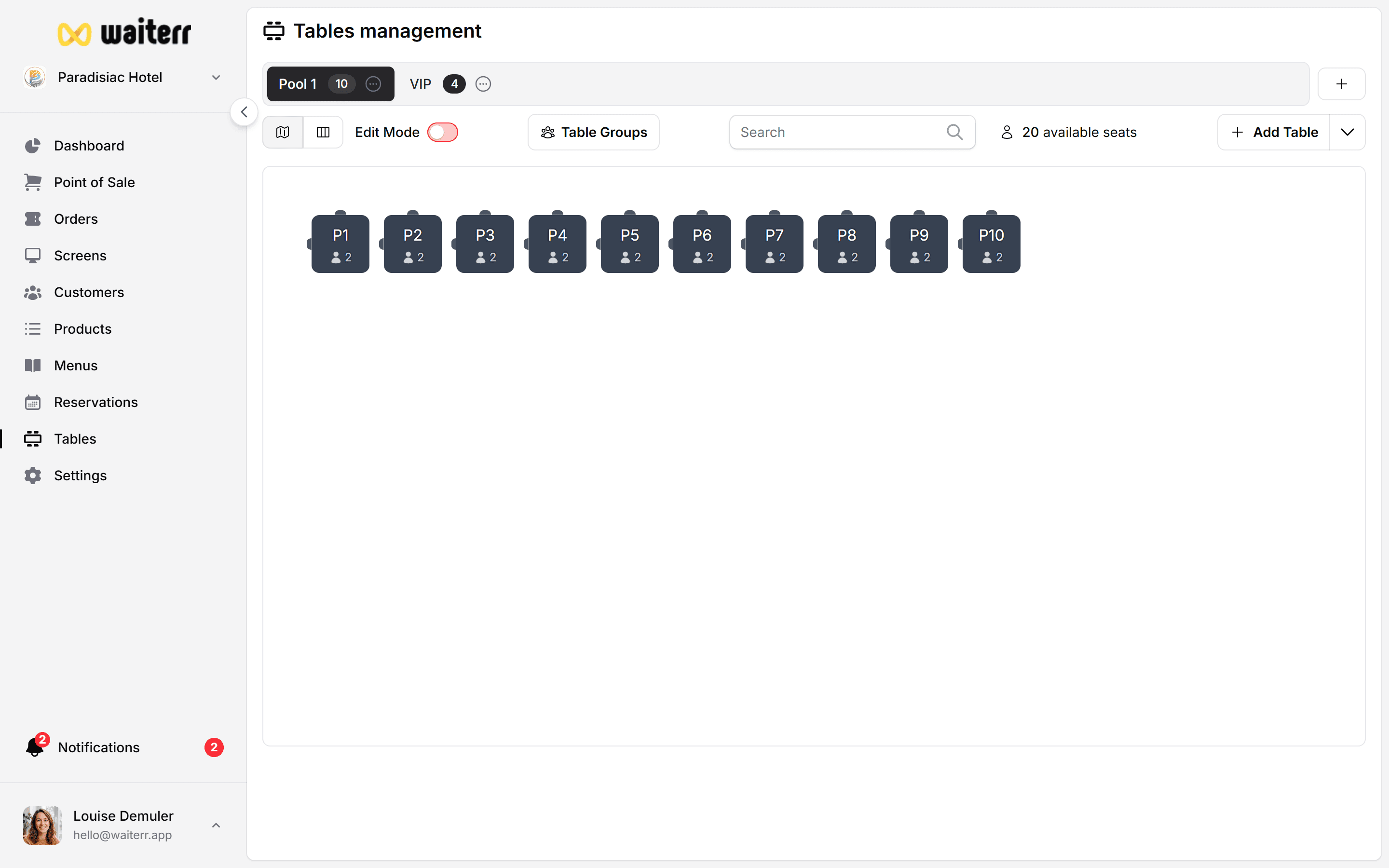
Where to find it
- Go to Tables
- Open the menu (⋮ or dropdown) on the top bar
- Choose Export tables or Import tables
Export tables
Export creates a file with:
- Areas (zones)
- Tables (name, seats, shape, position on plan)
- Optional metadata your version supports
Use cases:
- Backup before a big floor plan redesign
- Copy layout from one establishment to another
- Share with a consultant or architect
Import tables
- Click Import tables
- Select your file (format shown in the dialog)
- Review the preview if available
- Confirm import
Import may replace or merge depending on options. Read the dialog carefully. Export first if you’re unsure.
Before importing
✅ Create areas if the file references zone names
✅ Close active service or note that table IDs may change
✅ Re-print QR codes after import if table IDs changed
Print floor plan & bulk QR
From the same menu you can often:
- Print floor plan — paper copy for staff
- Print QR codes — multiple tables in one PDF
See QR codes for tables for placement tips.
Related pages
Last updated on