Set up payment methods — step by step
Customers need a way to pay. This guide explains which methods exist, where to turn them on, and what to configure first.
You can start with cash at the POS only, then add Stripe or Payconiq when you’re ready for online payments.
Where to go
Settings → Payment methods
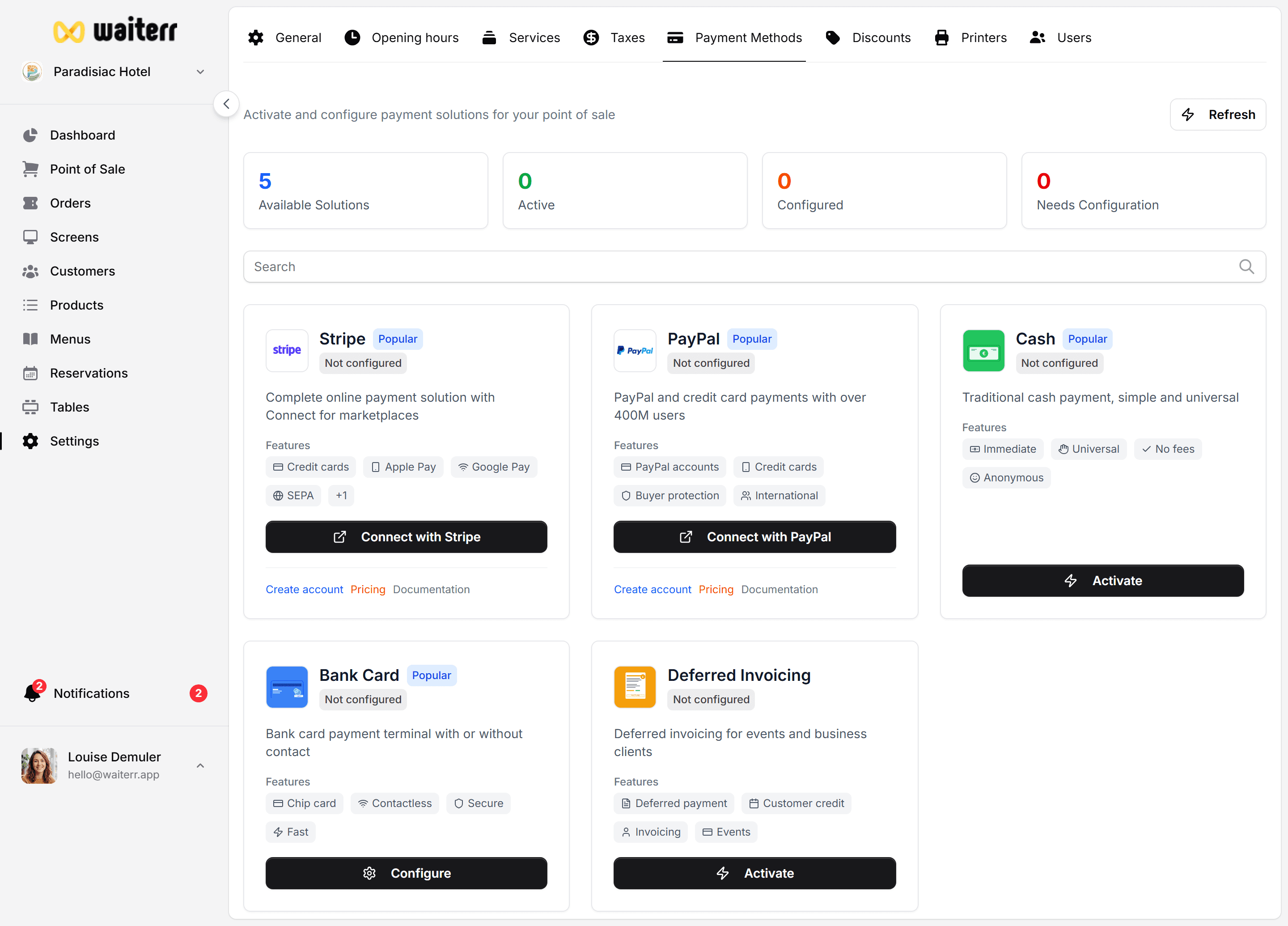
You’ll see cards for each provider (Stripe, Payconiq, PayPal, Cash, Card terminal…).
Online vs in-person
👉 Overview table: Payment methods overview
Recommended order of setup
1. Taxes first
Go to Settings → Taxes and set your VAT rates. Payments use these rates on every order.
2. Cash (fastest — for POS only)
- Settings → Payment methods
- Find Cash
- Toggle Active
- Choose which services can use it (usually POS / dine-in)
3. Stripe (for online card payments)
Needed if you want:
- QR ordering with card payment
- Takeaway / delivery paid online
- Apple Pay / Google Pay
Steps:
- Click Stripe → Configure
- Follow the connection wizard (Stripe account or create one)
- When status shows Connected, toggle Active
- Tick the services that may use Stripe
4. Payconiq (Belgium & Netherlands)
Popular for local mobile payments — works online and at POS.
5. PayPal (optional)
Some guests prefer PayPal for online orders.
👉 PayPal
Per-service activation
Each method can be limited to specific order types:
- POS — dine-in at the till
- QR ordering — scan at table
- Takeaway
- Delivery
Example setup for a typical brasserie:
- Cash + card → POS only
- Stripe + Payconiq → QR, takeaway, delivery
- PayPal → takeaway & delivery only
Change these in each provider’s settings panel.
Test before go-live
- Place a test order on QR or takeaway with a real small amount
- Pay with the method you configured
- Check the order appears in Orders as paid
- Void or refund the test if needed → Refunds
Troubleshooting
More: Troubleshooting
Related pages
👉 Payment methods overview
👉 Paying orders in POS
👉 Billing & subscription (your Waiterr plan, not customer payments)