Creating a Menu
Creating a new menu is simple and fast.
Menus help organize your product offering in a clear and customer-friendly way.
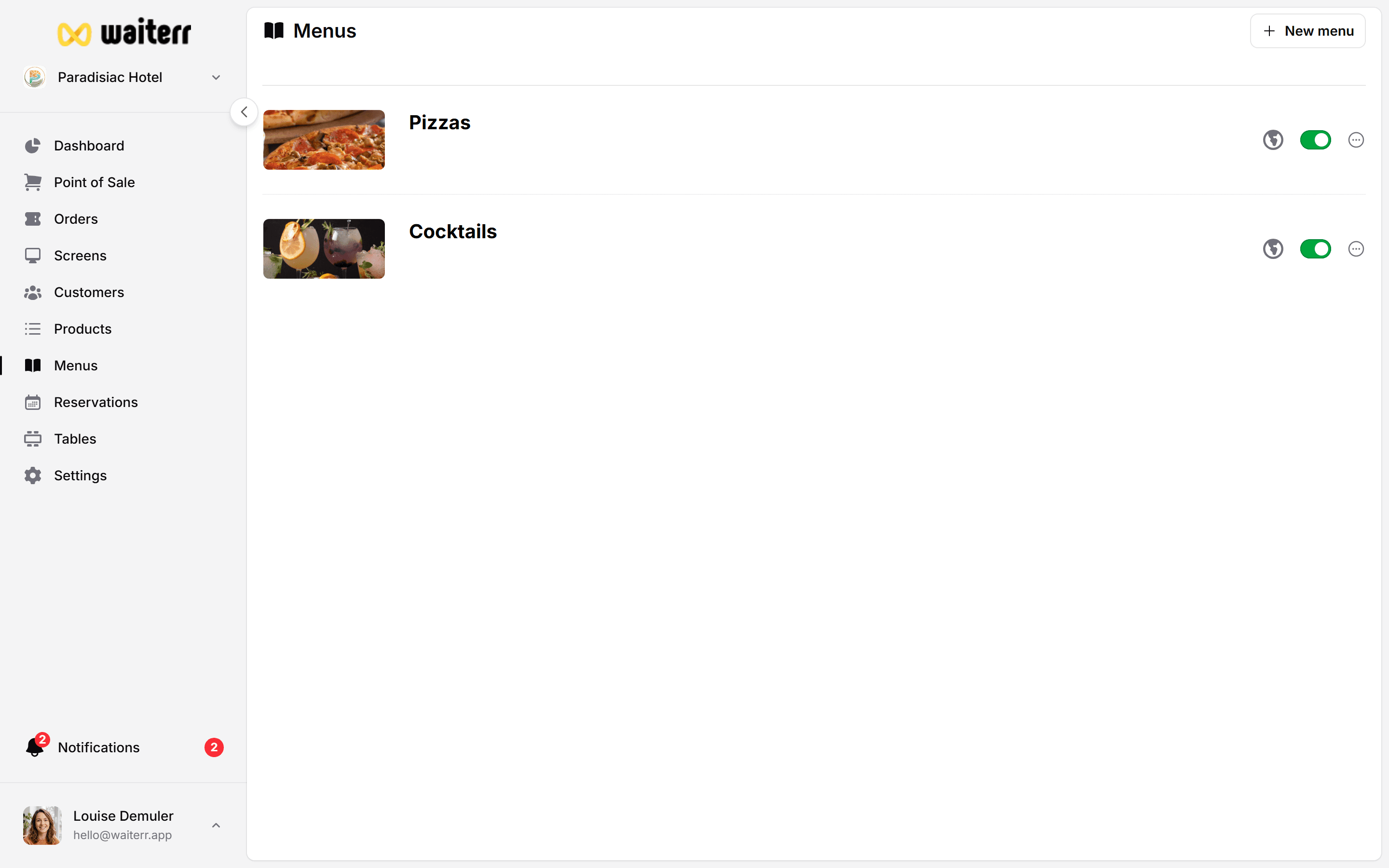
Steps to Create a Menu
Go to:
Menu → Add Menu
You will need to provide:
- Menu name
- Optional description
- Optional icon
- Optional availability
- Optional image
Required Fields
🏷 Menu Name
Examples:
- Drinks
- Lunch
- Evening Menu
- Weekend Specials
📝 Description (optional)
Displayed on:
- Online ordering pages
- POS quick view
- Category headers (upcoming feature)
Example description:
“Our selection of handcrafted cocktails.”
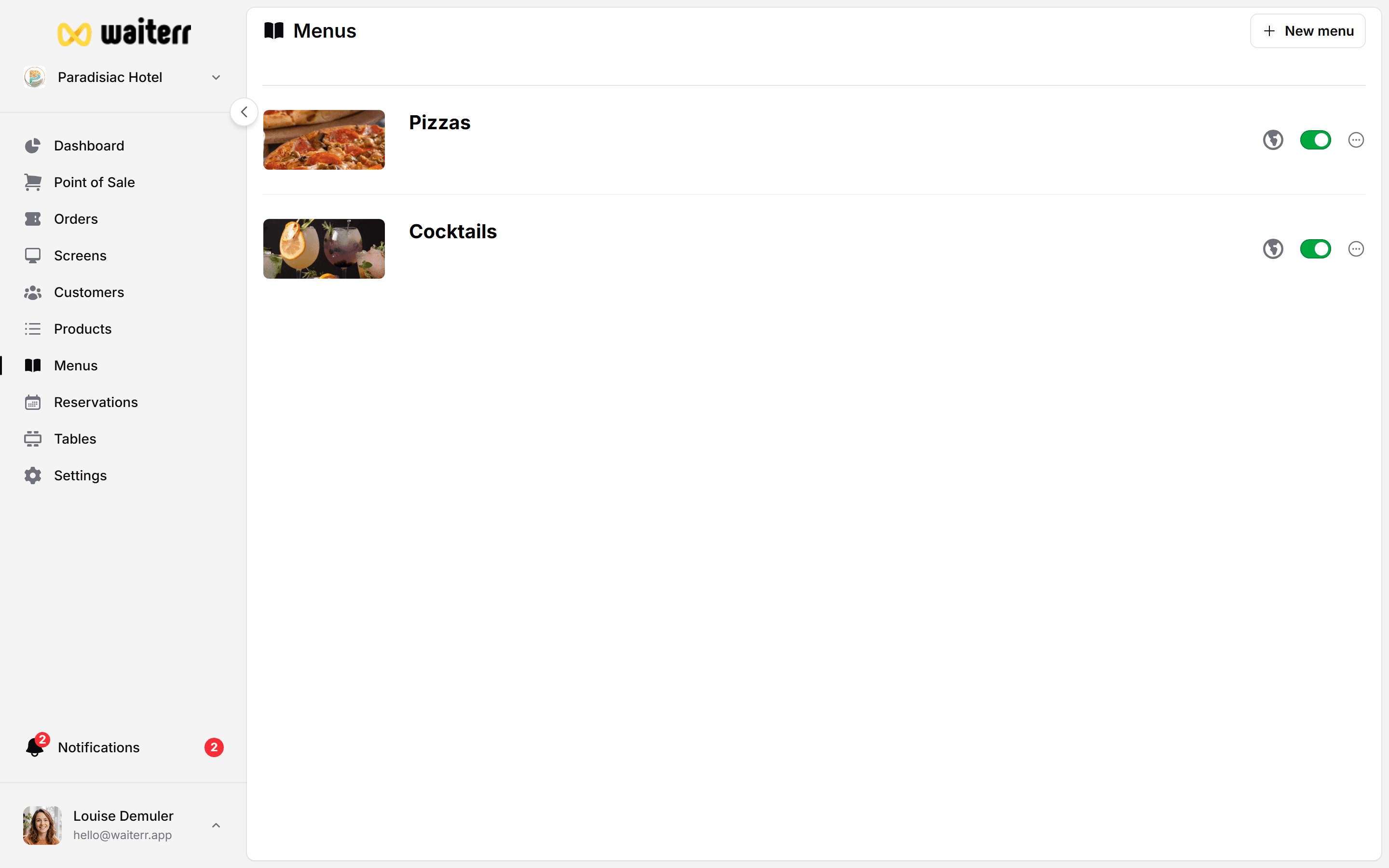
Advanced Options
Availability (days & time slots)
Define when the menu is shown to customers.
Learn more →
Menu Availability
Icon
Used to help customers identify the menu quickly.
Menu Image
Used for visual emphasis on customer pages.
Learn more →
Menu Images
After Creating a Menu
You will be redirected to the Menu Editor, which contains:
- Menu tab (categories & products)
- Availability tab
- Appearance tab
Learn more →
👉 Categories
Last updated on