QR codes for tables
QR codes let guests order from their phone without waiting for a waiter. Each table has its own code so orders arrive on the right table in the kitchen and on the POS.
Before you print anything
Complete these first:
- Areas and tables exist
- Menu has products with prices
- QR ordering is enabled in Settings → Services
- At least one online payment method is active (setup guide)
Without payment + service enabled, the QR page may load but guests can’t pay.
How it works for the guest
- Guest scans the QR sticker on the table
- Phone opens your menu (no app install)
- They add items and pay (or order to pay at till — depends on your settings)
- Order appears on KDS and POS linked to that table
- Staff bring food to the correct table
Generate QR codes
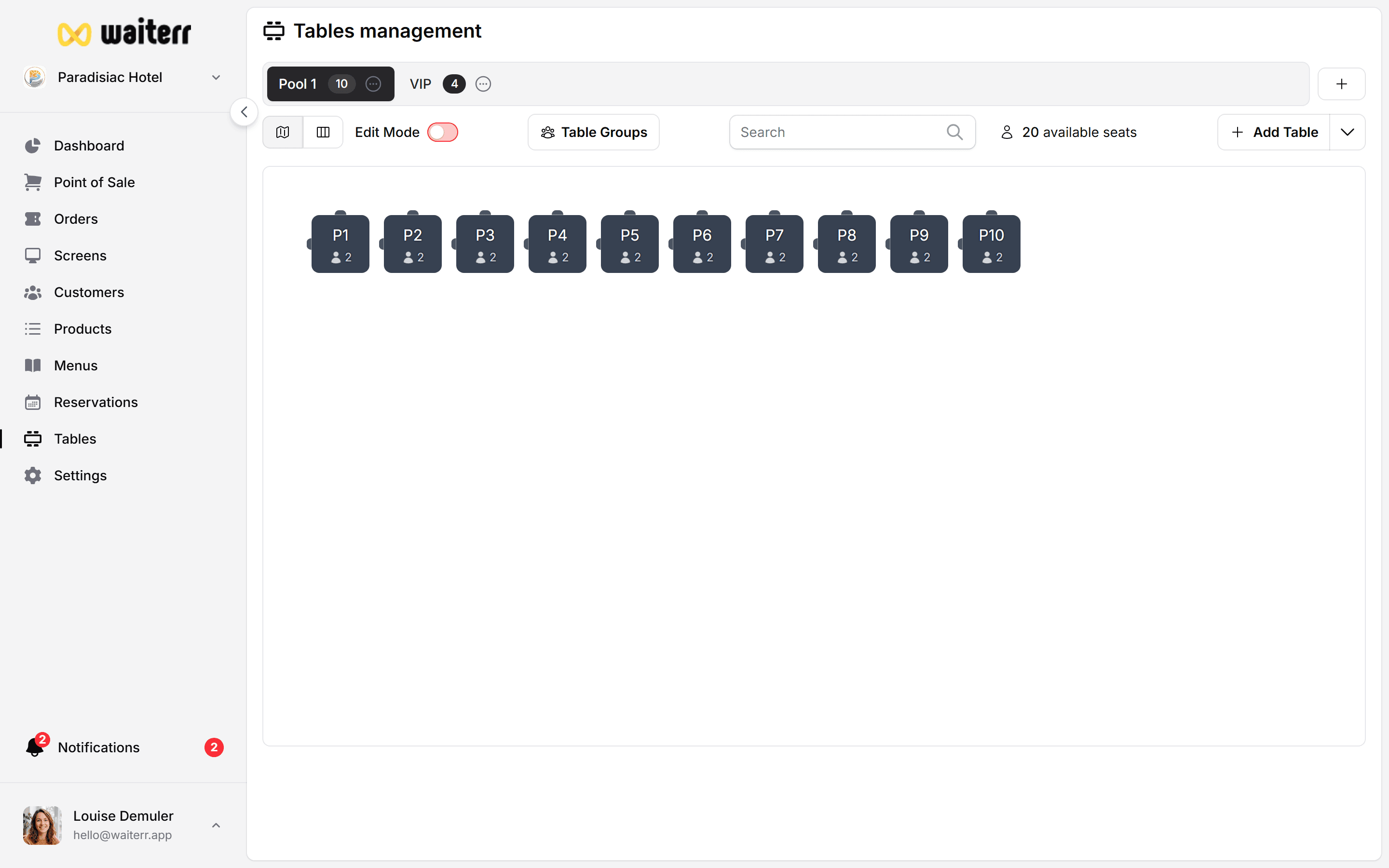
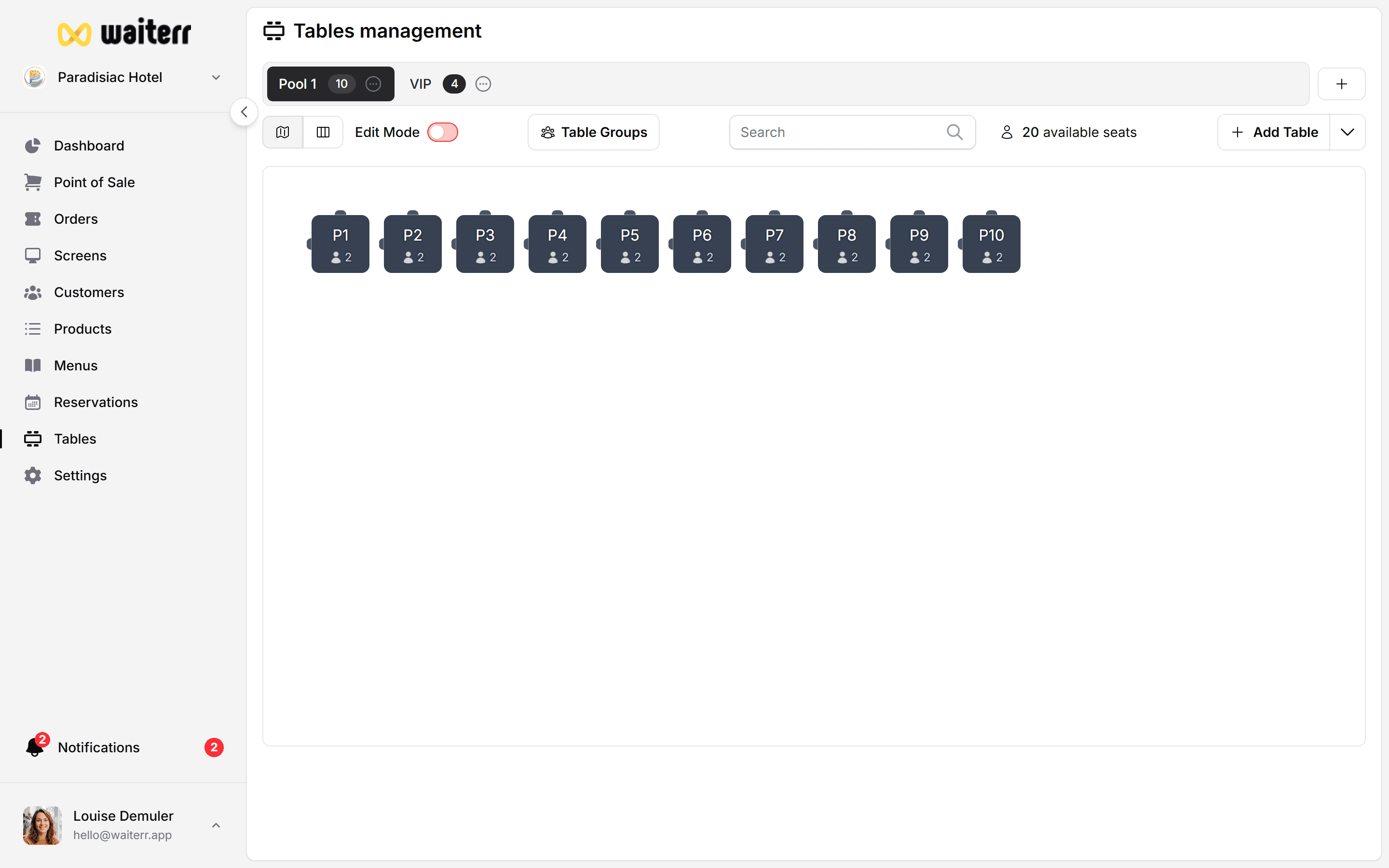
- Go to Tables
- Select one or more tables (checkbox on list view, or multi-select on plan)
- Click QR code menu → Download or Print
Download PNG
One image per table. Use for:
- Custom stickers
- Table tents you design yourself
- Laminated cards
Print A4 template
Waiterr layout includes:
- Table name (large, so staff see it)
- QR code (centred, scannable size)
- Short instructions for guests
- Your logo / colours (from menu appearance)
Where to place QR codes
💡 Terraces: use a small weighted stand so wind doesn’t flip the code.
Regenerate a QR code
If a sticker is damaged or stolen:
- Select the table
- Regenerate QR
The old QR stops working. Print and replace the physical sticker.
Bulk print
For many tables:
- Tables page → menu → Print QR codes
- Or select all tables in an area → Print
See also Import & export tables if you rebuild the floor plan.
Troubleshooting
Related pages
👉 Guide: configure tables
👉 QR ordering settings
👉 POS table selection
Last updated on