Creating areas (zones)
Areas split your venue into sections — Terrace, Dining room, Bar, Private room… They make the Tables page, POS, and reservations easier to navigate when you’re busy.
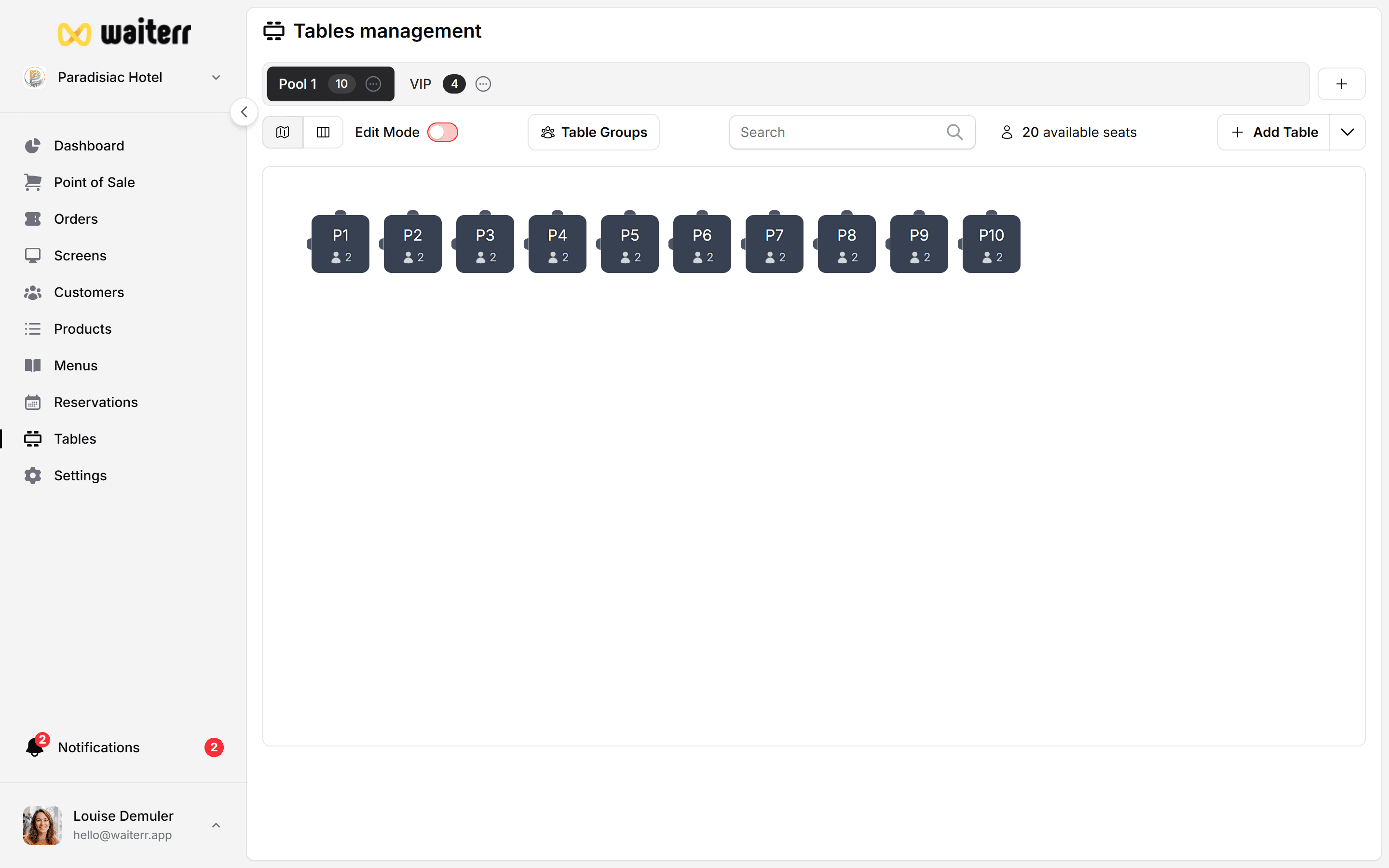
Step by step — add an area
- Open Tables in the left menu
- Look at the tabs along the top (each tab is an area)
- Click + Add area (or Add zone)
- Enter:
- Name — what staff say out loud (“Terrace”, not “Zone A”)
- Colour (optional) — helps on the floor plan
- Description (optional) — “Outdoor, 20 seats, smoking allowed”
- Save
The new tab appears. Click it before adding tables inside that area.
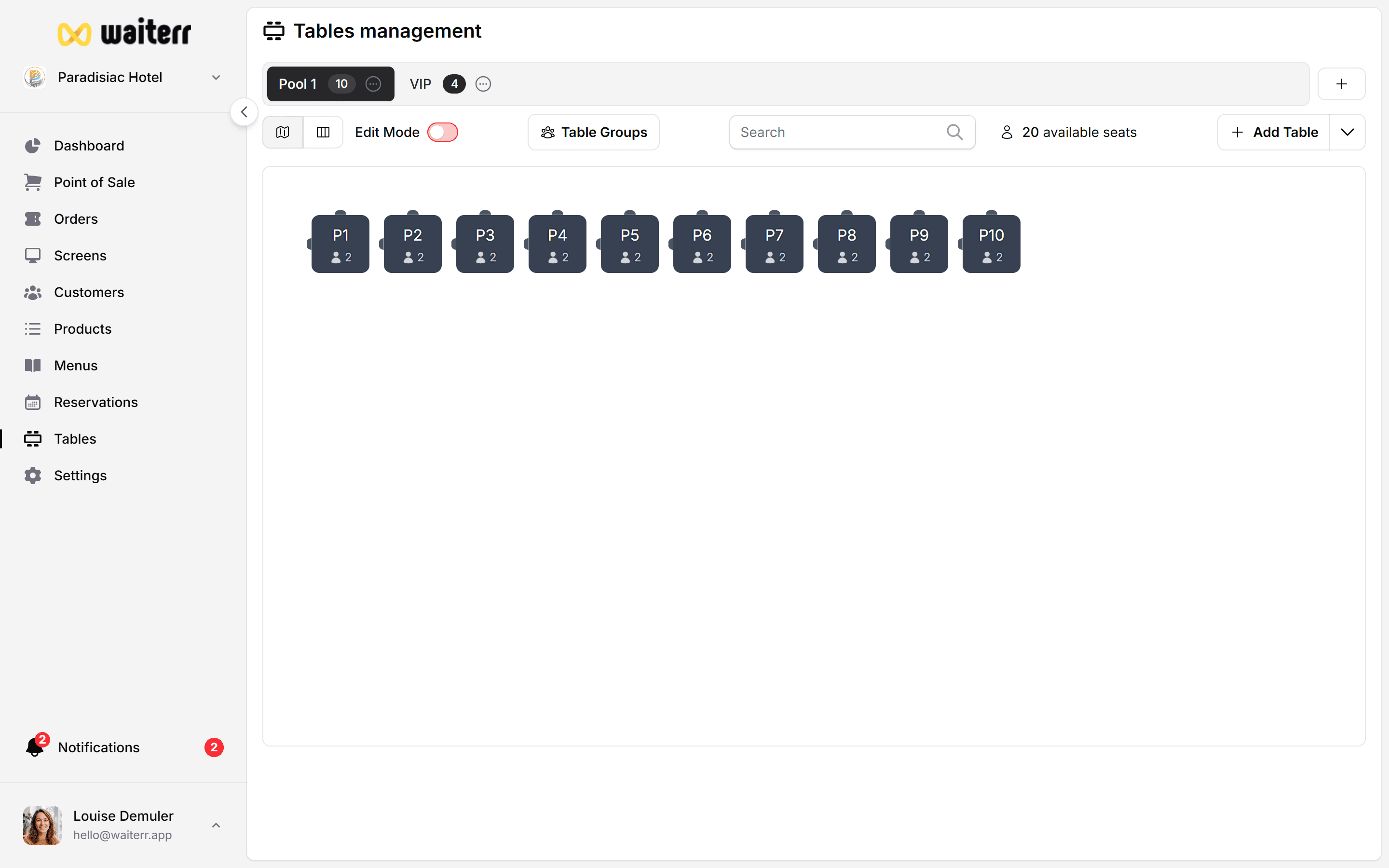
Examples by venue type
One area is fine for small venues — you don’t need many zones.
Edit or delete an area
- Rename — click the area tab menu → Edit
- Reorder tabs — drag tabs if your UI supports it, or use area settings
- Delete — only when no tables are left in that area
Move or delete tables first. Deleting an area with tables inside can block the action or leave orphan tables.
Why areas matter
Tips
💡 Match real-world language — if waiters say “garden”, name it Garden not “Outdoor section 2”
💡 Use colours consistently (blue = inside, green = terrace)
💡 Create areas before drawing the floor plan
Related pages
👉 Guide: configure tables
👉 Floor plan editor
👉 Tables overview
Last updated on