Production Screens (KDS)
Production Screens show items that need to be prepared at a specific station (kitchen, bar, etc.).
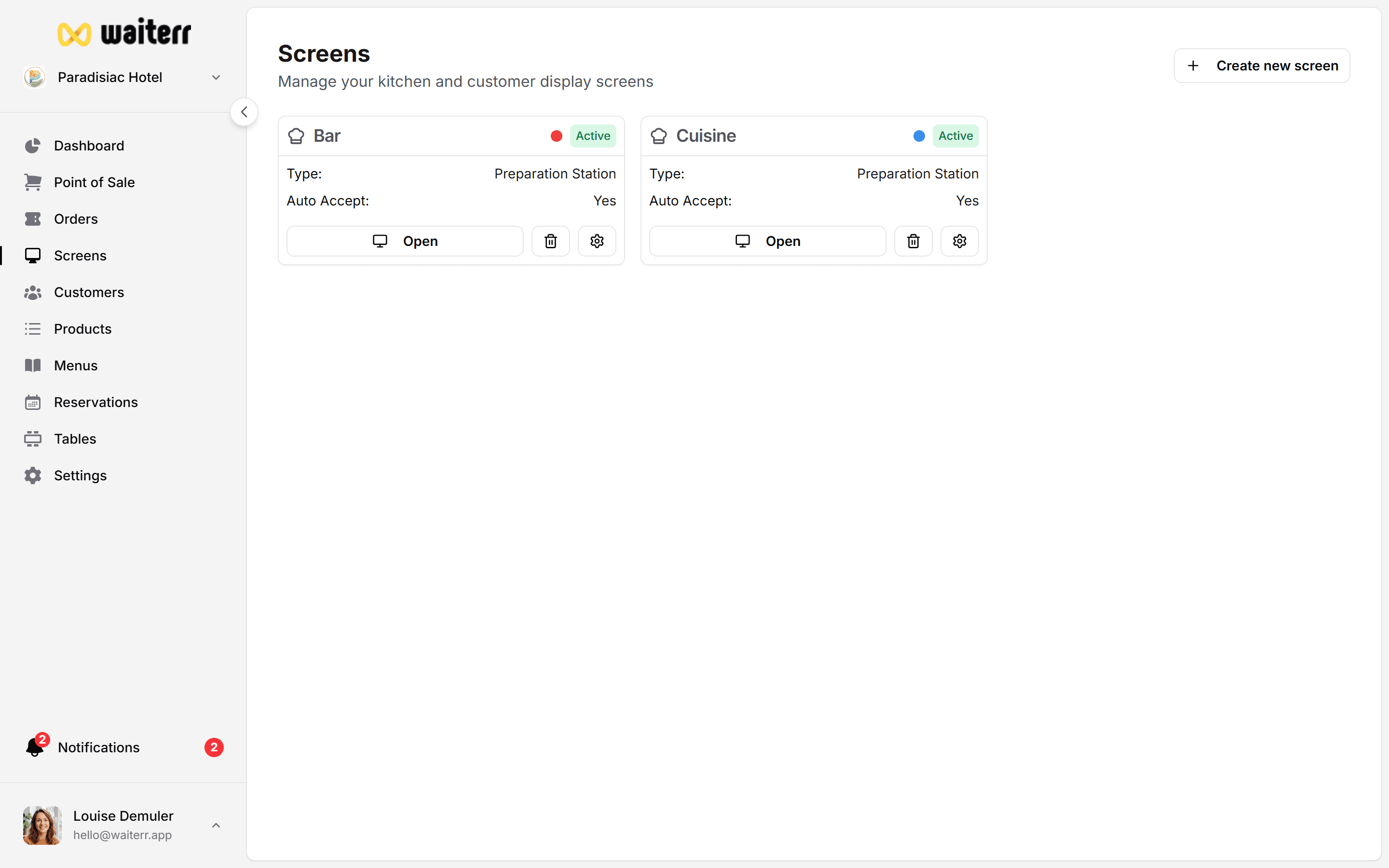
Creating a Production Screen
Go to:
Screens → Create New Screen → Preparation Screen
You will configure:
- Screen name
- Optional description
- Color code (for visual identification)
- Filters (tables, order types, areas…)
- Automatic product assignment rules
- Auto-accept rules
- Preparation constraints
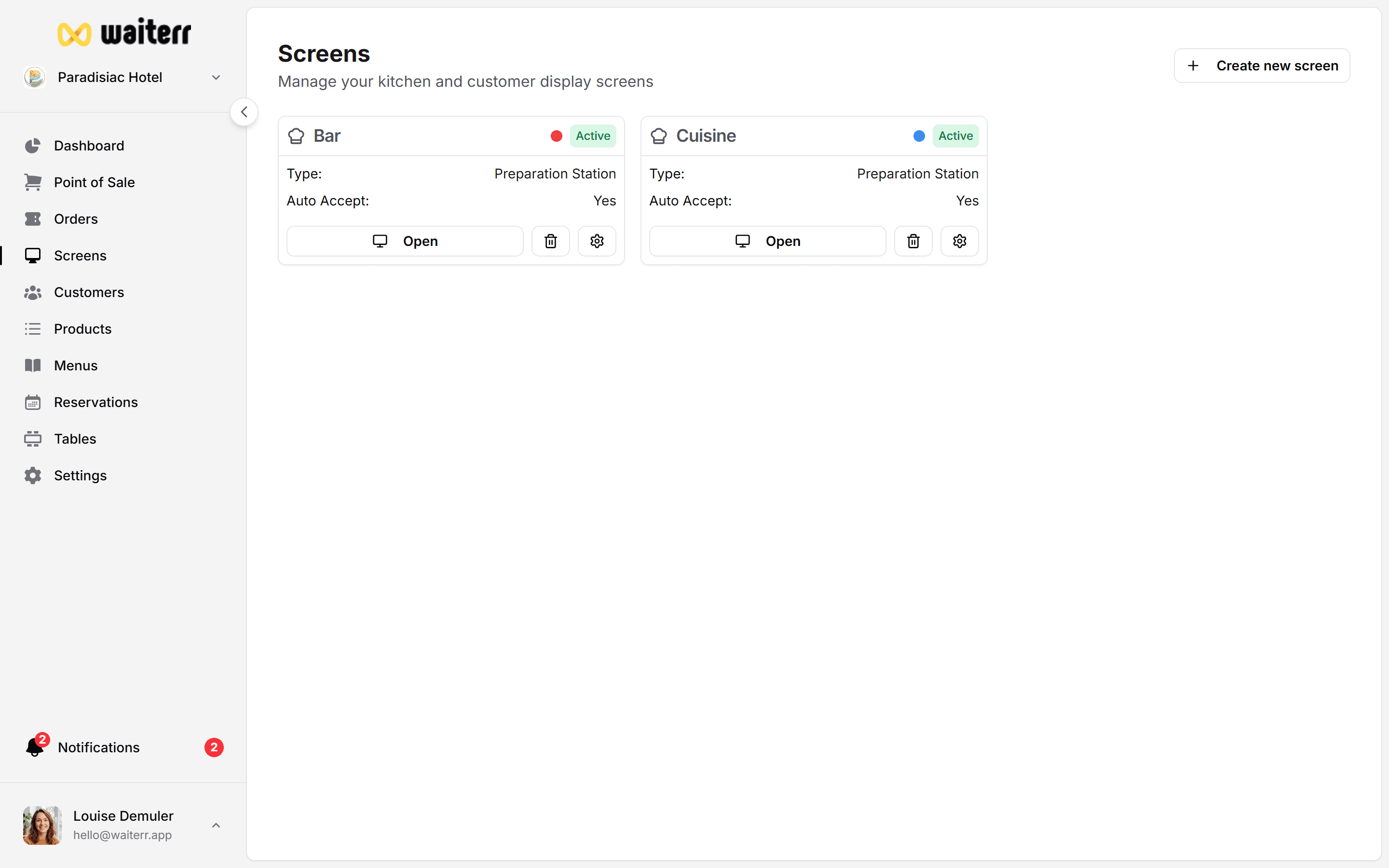
Filters
Filters define which orders appear on this screen:
Table Filters
- All tables
- Exclude selected tables
- Only selected tables
- Entire zones (bar area, terrace…)
Order Type Filters
Choose which order types appear:
- Dine-in
- QR orders
- Takeaway
- Delivery
Order Number Filters
Example:
- Only even order numbers
- Only odd order numbers
Useful during large events.
Automatic Product Assignment
You can assign products automatically based on:
- Menu
- Category
- Specific product tags
Example:
- All “Drinks” category products → Bar screen
- All “Hot food” category products → Kitchen screen
Learn more →
👉 Assign Products to KDS
Auto-Accept Orders
Decide whether:
- Orders are automatically confirmed
- Orders require manual confirmation
Auto-accept is recommended for:
- Bars
- Fast-food
- High-frequency service
Manual accept is recommended for:
- Fine dining
- Complex dishes
Preparation Limits
You can configure:
- Average preparation time
- Max number of simultaneous orders
- Timeouts (color-coded)
Example:
- Green < 15 minutes
- Orange > 15 minutes
- Red > 35 minutes
Workflow
Each order progresses through:
- Pending
- Confirmed
- Preparing
- Ready
- Delivered
Staff updates each step with a tap.
Related Pages
Last updated on