Sales reports (print)
The sales report is a printable summary of your day’s figures. It opens automatically in print view — useful for closing the register or handing numbers to accounting.
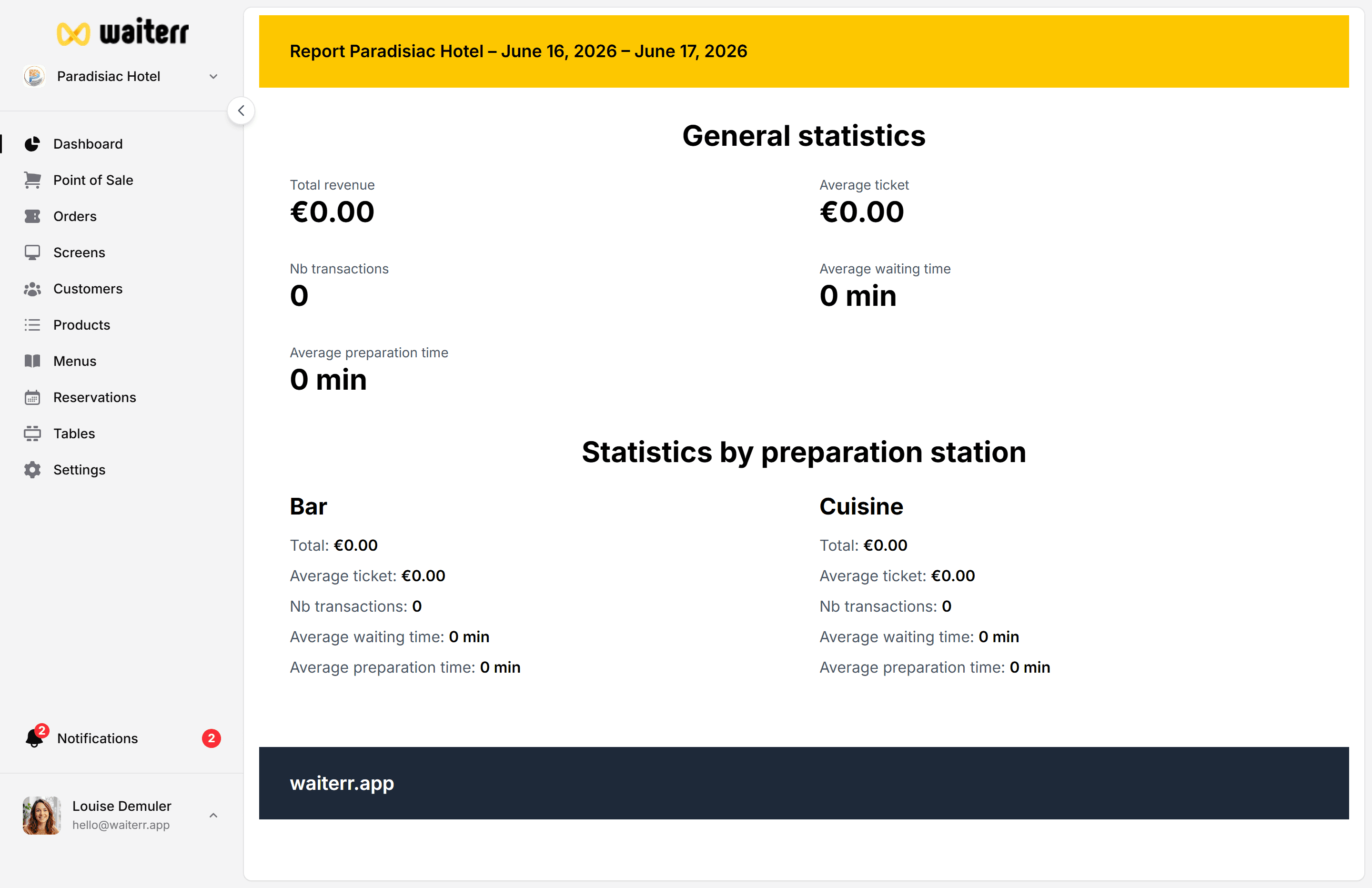
How to open a report
- Go to Dashboard
- Set your date range (today, this week, custom)
- Click Print report (or open the report link from dashboard actions)
The report page loads data and triggers your browser’s print dialog.
On mobile, use “Print” then “Save as PDF” if you don’t have a printer nearby.
What’s on the report
Typical sections include:
- Period covered (from / to dates)
- Gross sales and net after discounts
- Tax (VAT) breakdown by rate
- Payment methods split (cash, card, Stripe, Payconiq…)
- Order counts by type (dine-in, takeaway, delivery, QR)
- Discounts total
Exact lines depend on your tax settings and active services.
When to use it
Tips
💡 Print after check totals if you reconcile cash manually
💡 Compare report payment split with your Stripe dashboard for online payments
💡 Bookmark the report URL with date params for recurring exports
Related pages
Last updated on