Assigning Products to KDS Screens
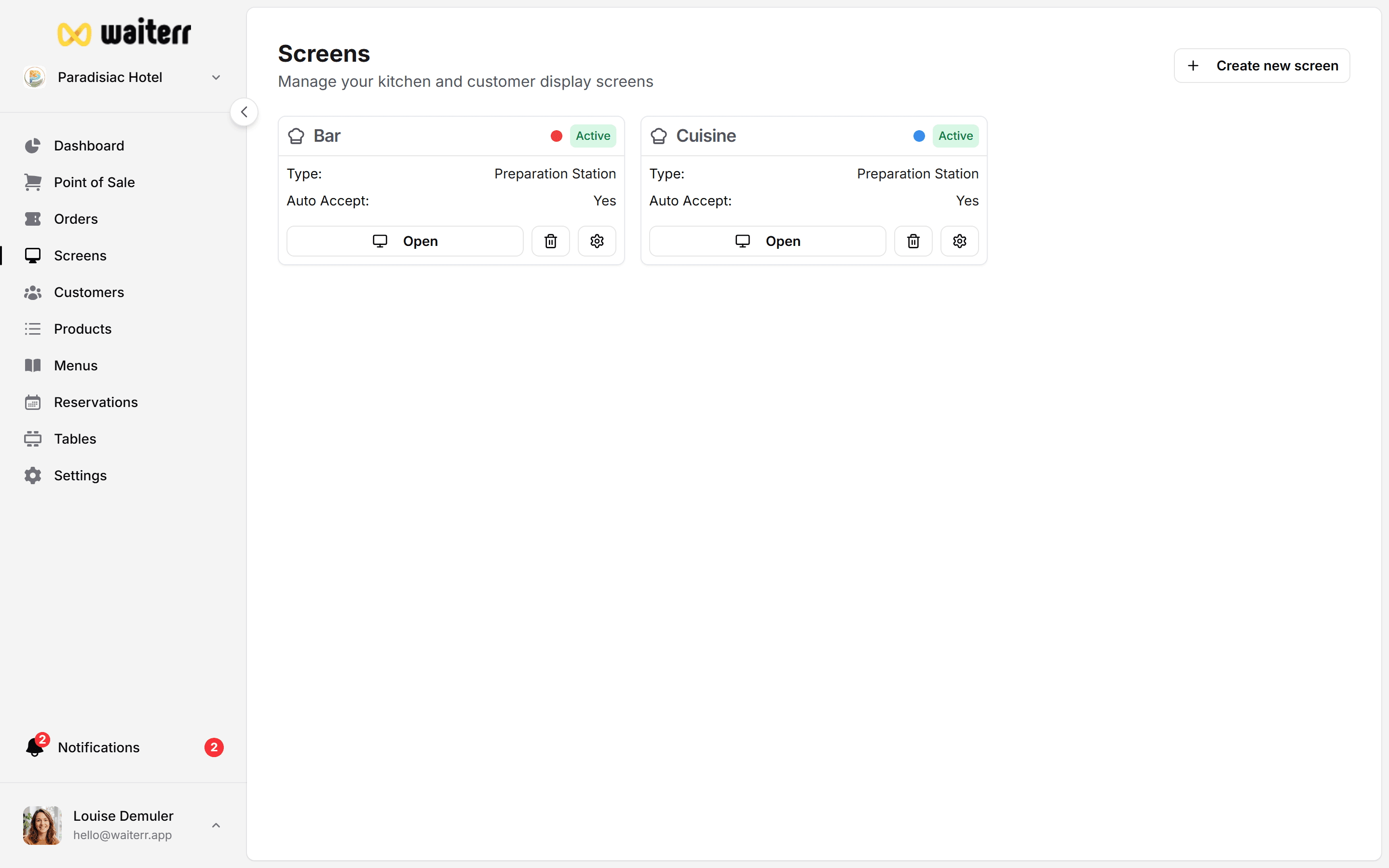
Assigning products to KDS screens ensures the right items reach the right preparation area.
Two Ways to Assign Products
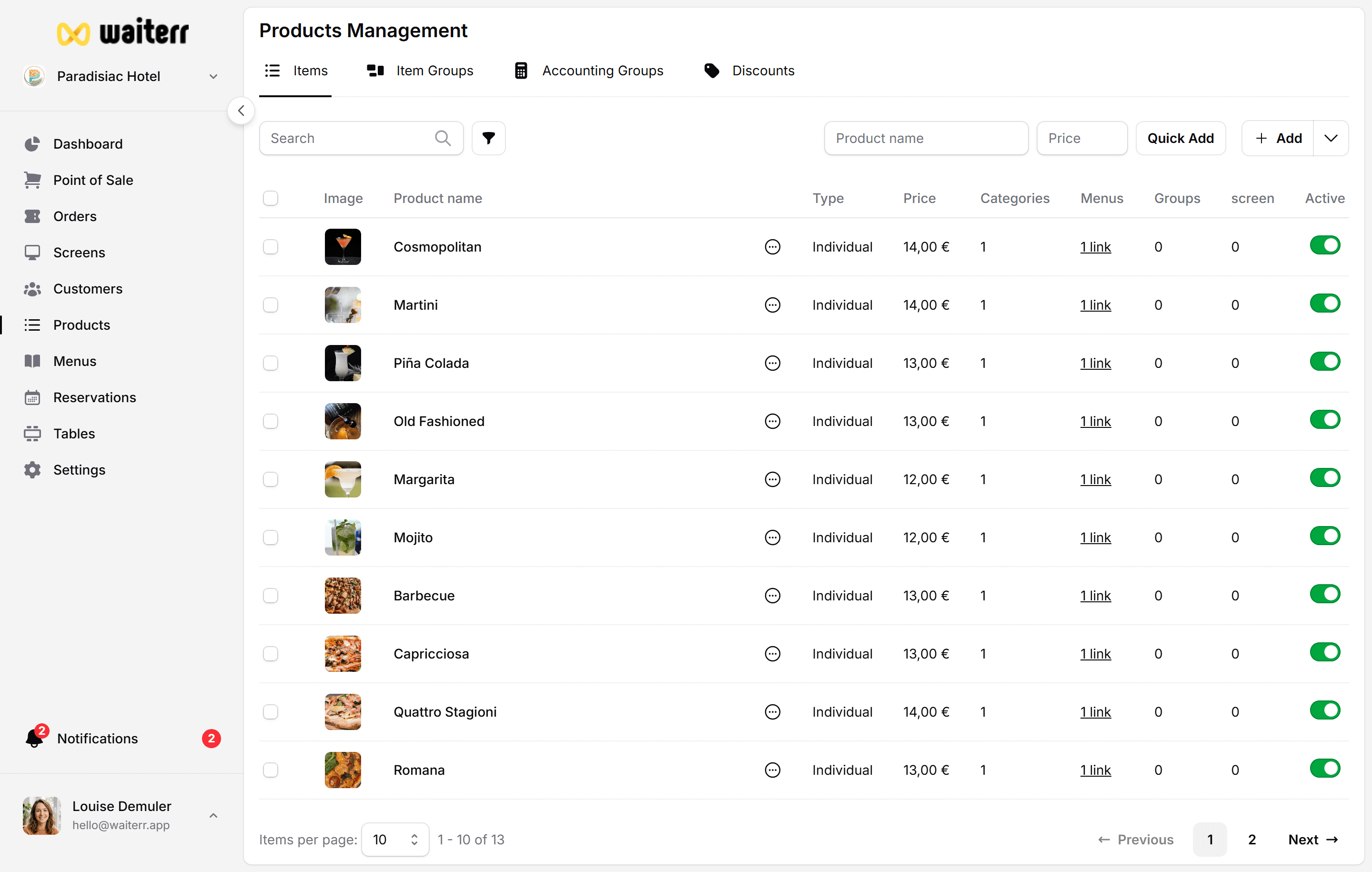
1. Manual Assignment (Per Product)
Go to:
Products → Edit Product → KDS Assignment
You can assign the product to:
- Kitchen
- Bar
- Coffee station
- Dessert station
- Multiple screens
2. Automatic Assignment Rules (Recommended)
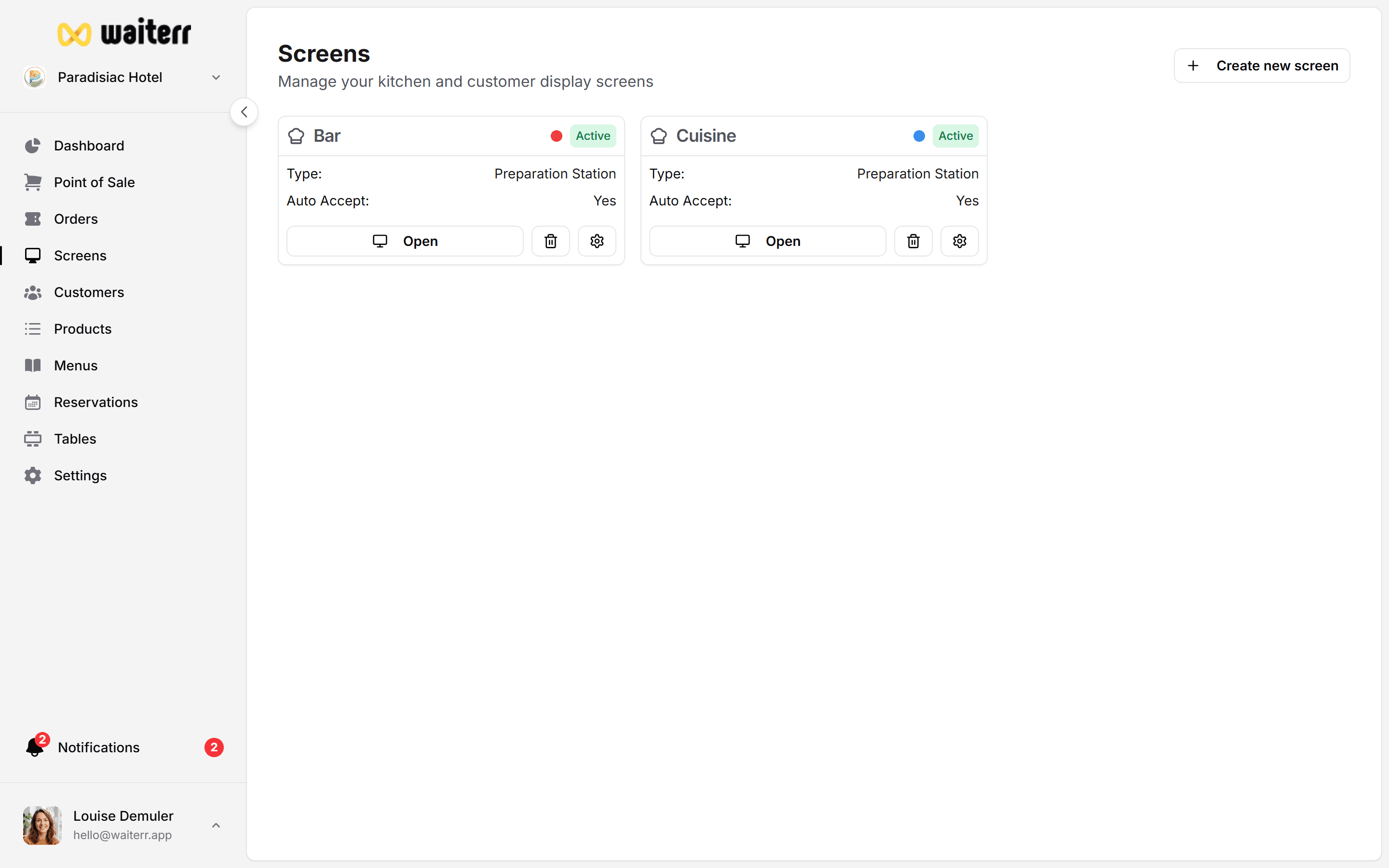
In the KDS screen settings you can define rules:
Assign products based on:
- Menu
- Category
- Subcategory
- Tags
Examples:
- All “Cocktails” → Bar KDS
- All “Hot dishes” → Kitchen KDS
- All “Desserts” → Pastry KDS
Why Assignment Matters
Incorrect assignments cause:
- Preparation delays
- Confusion
- Food going to the wrong station
- Slower service
Always review assignments when adding new products.
Related Pages
Last updated on