Client Display Screens
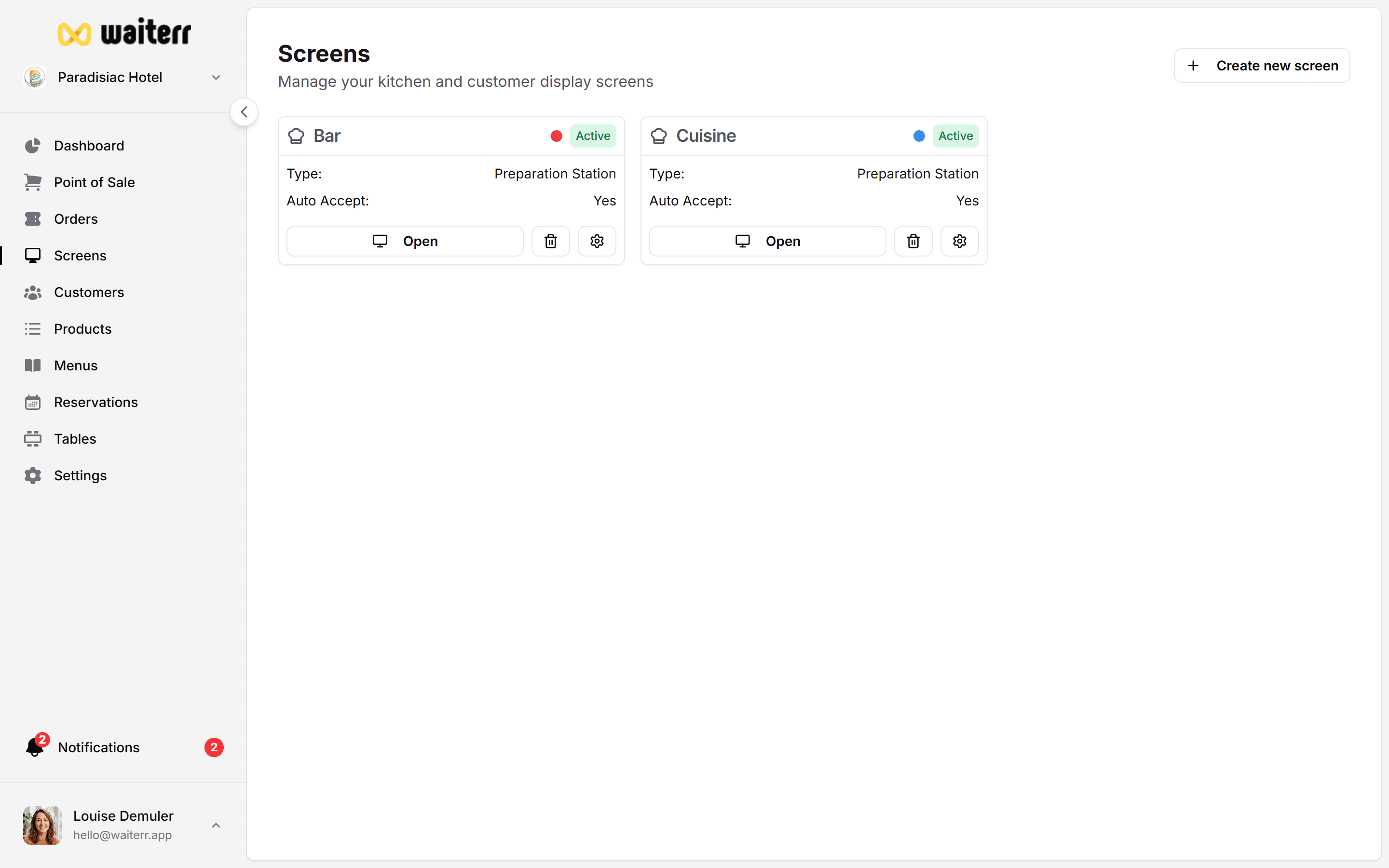
Client Display Screens allow customers to track their order in real time using a public-facing screen.
These are ideal for:
- Fast-food
- Food courts
- Bars
- Dark kitchens
- Festivals / events
How It Works
- Customer places an order
- Order is assigned to a preparation screen
- A linked client display shows the status:
- Preparing
- Confirmed
- Ready
- Delivered
Each order is shown as a visual card.
Creating a Client Display Screen
Go to:
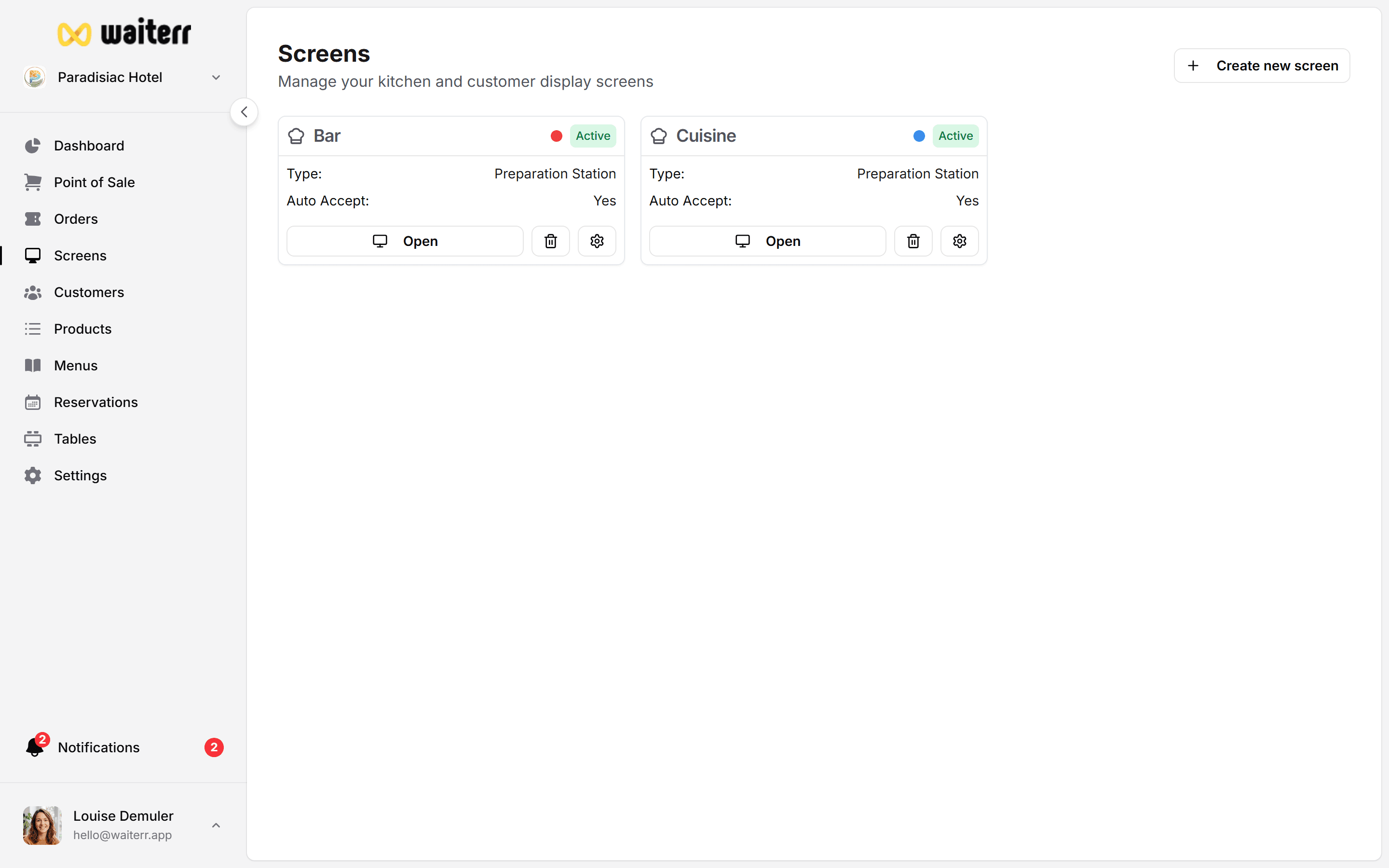
Screens → Create Screen → Client Display
Configure:
- Screen name
- Optional filters (tables, zones, order types)
- Statuses to display
- Appearance (logo, colors, cover image)
- Sponsor logos (optional)
- Carousel mode or static mode
- Rotation speed
Status Filters
Choose which statuses appear on screen:
- Preparing
- Confirmed
- Ready
(Delivered is optional)
Link to a Preparation Screen
You can link a client display to a KDS screen:
- Kitchen display → only kitchen-prepared orders
- Bar display → only bar-prepared orders
Appearance Configuration
You can customize:
- Establishment name / hide
- Logo / hide
- Cover image
- Sponsor logos
- Card layout
- Timing display
Best Practices
💡 Place the client display near the pickup zone
💡 Use sponsor mode during events to display rotating sponsors
💡 Keep your brand visible with logo + cover image
Related Pages
Last updated on