Categories
Categories help you organize products inside each menu.
Each menu can contain as many categories as needed.
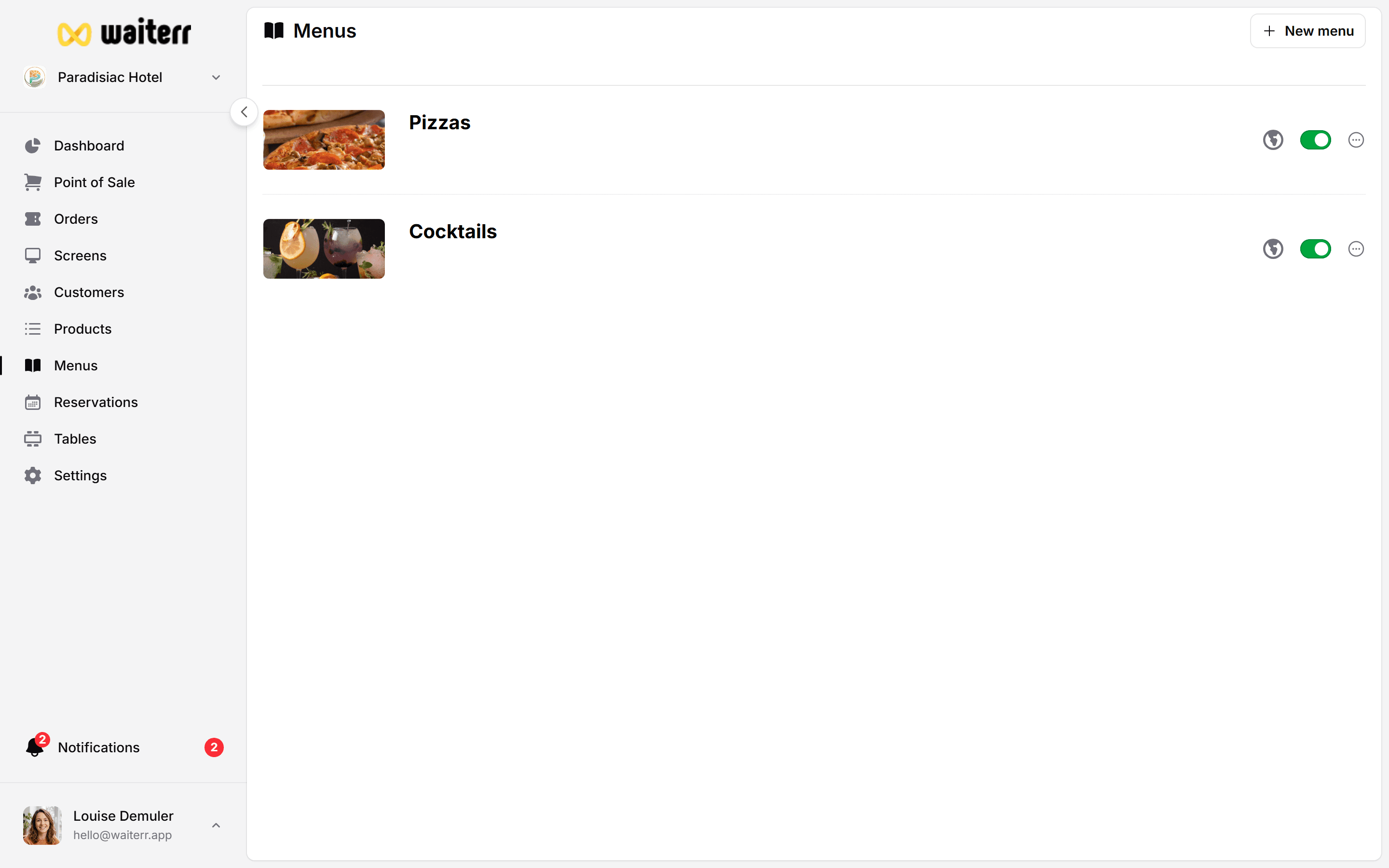
Creating a Category
Inside the menu editor, go to:
Menu → Add Category
You will need:
- Category name
- Optional description
- Optional image
Examples:
- Starters
- Burgers
- Cocktails
- Desserts
- Hot Drinks
- Soft Drinks
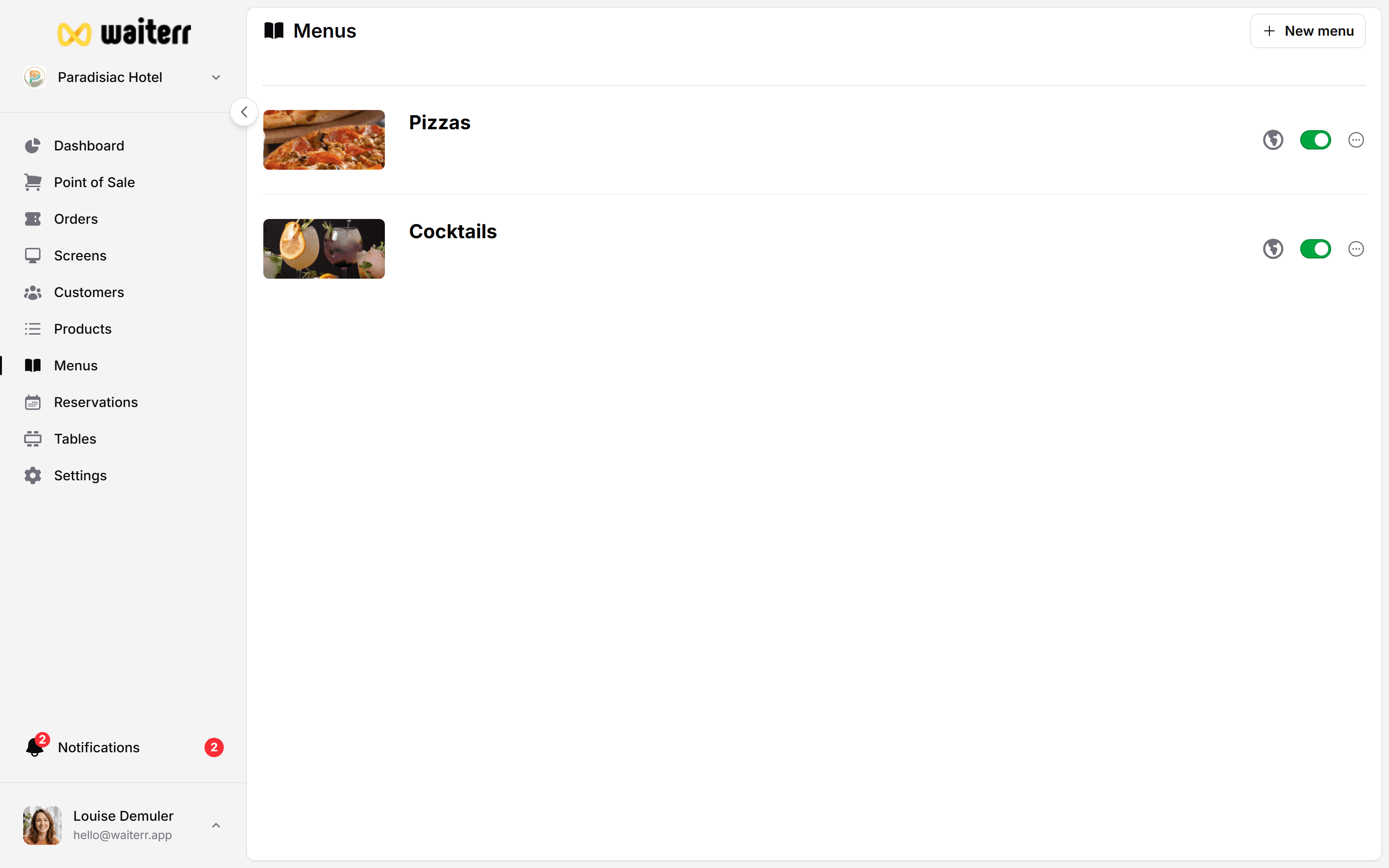
Editing a Category
You can:
- Change name
- Change description
- Replace image
- Duplicate category
- Copy category to another menu
- Delete category
Category Images
Category images work the same way as menu images:
- Select from predefined suggestions
- Use AI-suggestions (if enabled)
- Upload your own image
- Crop before upload
Learn more →
Menu Images
Adding Products to a Category
You can add products in two ways:
1. Quick Add (Fastest)
Enter:
- Product name
- Price
Press Enter → product is instantly added.
Perfect for:
- Bars
- Simple menus
- Fast setup
2. Advanced Product Creation
Opens the full product modal where you can configure:
- Description
- Options (sizes, extras…)
- Allergens
- Ingredients
- Tags
- Accounting group
- KDS assignment
Learn more →
Create Product
Product Management Inside Categories
For each product you can:
- Reorder
- Edit
- Duplicate
- Remove from category
- Archive
Best Practices
💡 Keep category names short
💡 Add images to help customers
💡 Group similar items together
💡 Avoid overly long categories
Related Pages
Last updated on