Menu Appearance
You can fully customize the look and feel of your menu as seen by customers.
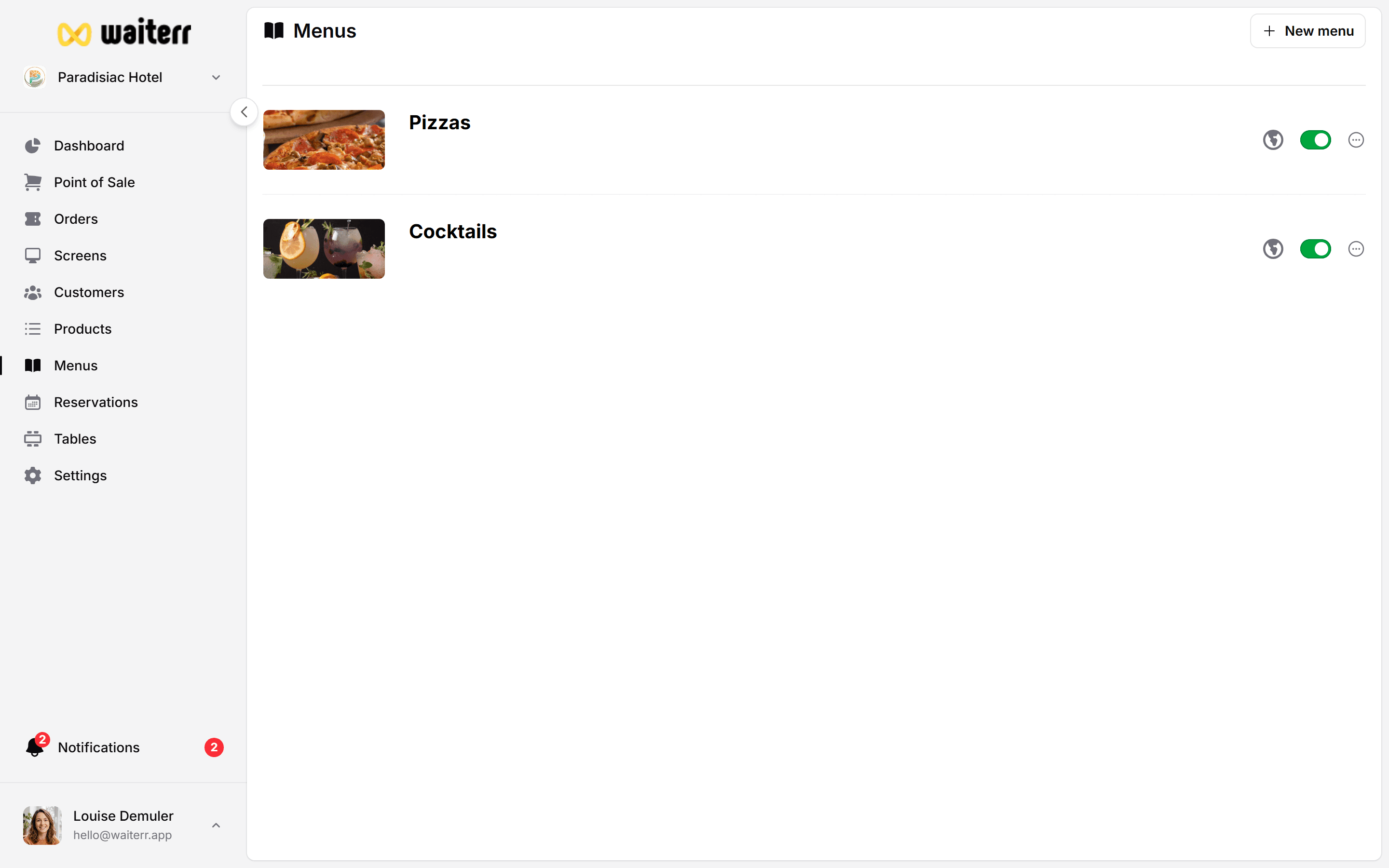
What You Can Customize
- Menu image
- Font style
- Primary colors
- Secondary colors
- Text colors
- Background colors
These changes update the customer-facing menu immediately.
Font Options
Choose from:
- Standard font
- Premium fonts (available for premium subscribers)
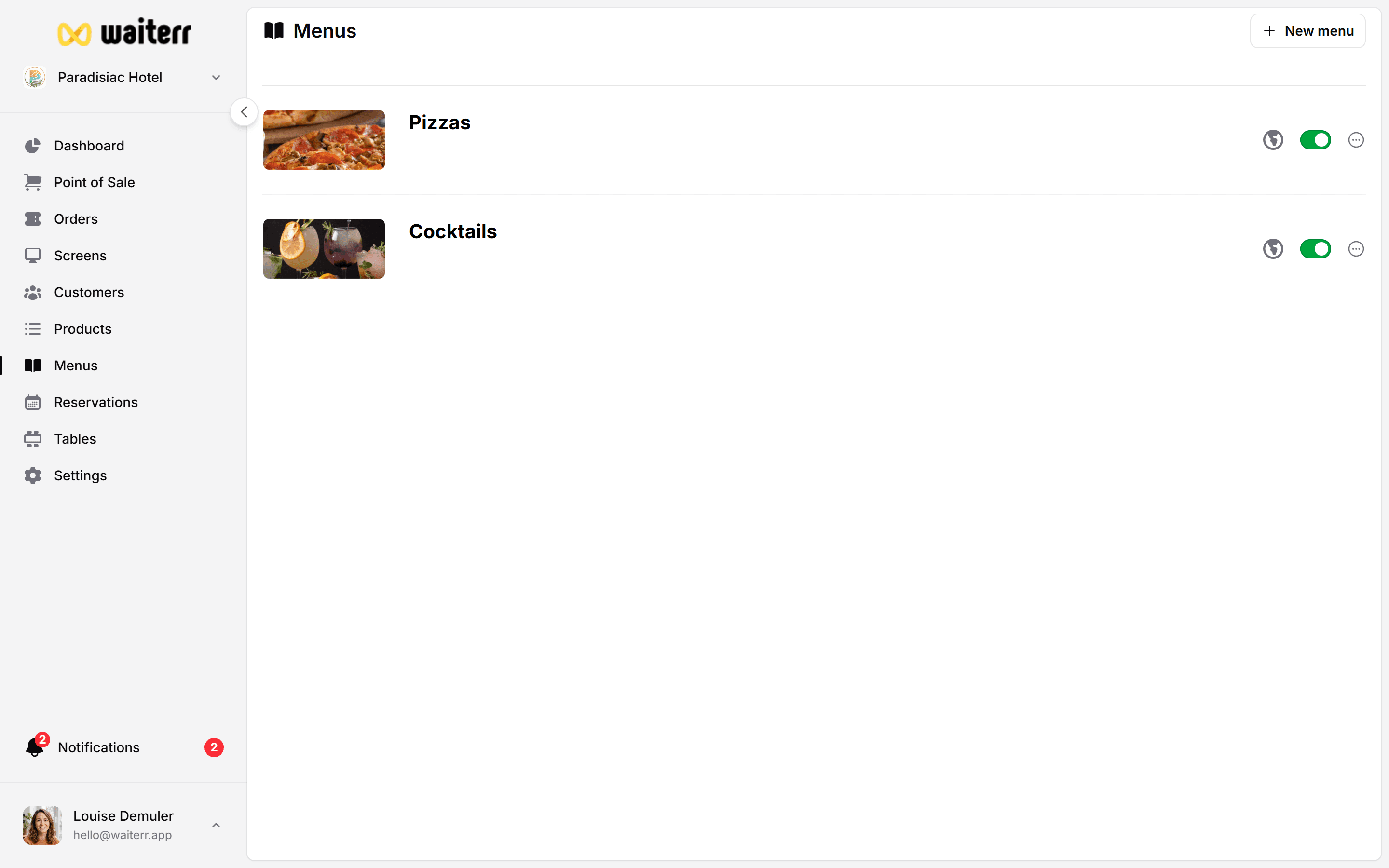
Color Customization
You can configure:
- Primary color → highlights & buttons
- Secondary color → accents
- Background color
- Text color
Example:
Primary: #FF7A00 Secondary: #FFC700 Background: #FFFFFF Text: #222222
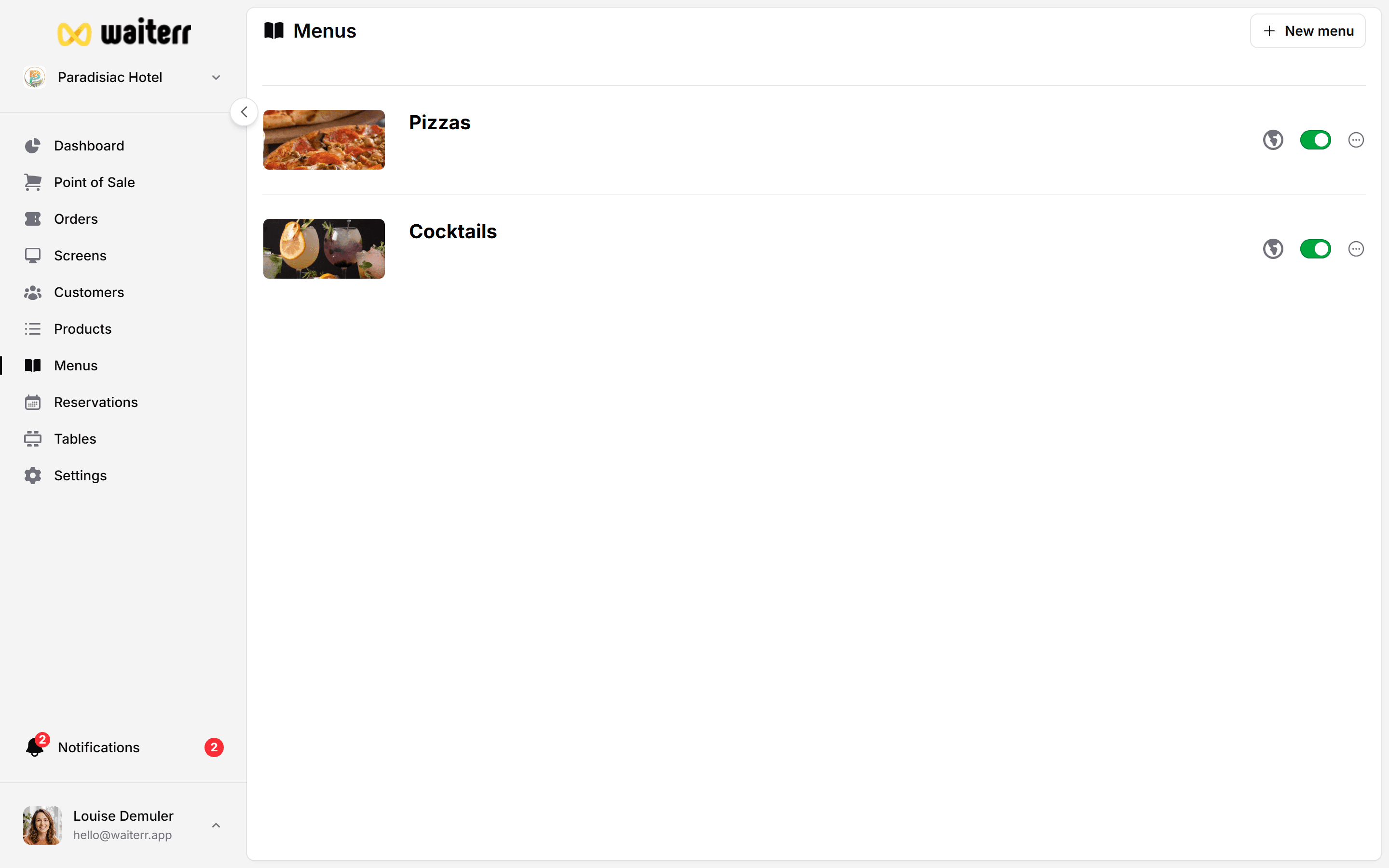
Live Preview
The editor displays a live preview of how the menu will appear to customers.
Best Practices
💡 Use your brand colors
💡 Ensure text contrast is readable
💡 Avoid using too many colors
💡 Keep the style consistent across menus
Related Pages
Last updated on