Table Plan (Layout Editor)
The Table Plan allows you to visually arrange tables in each area of your venue.
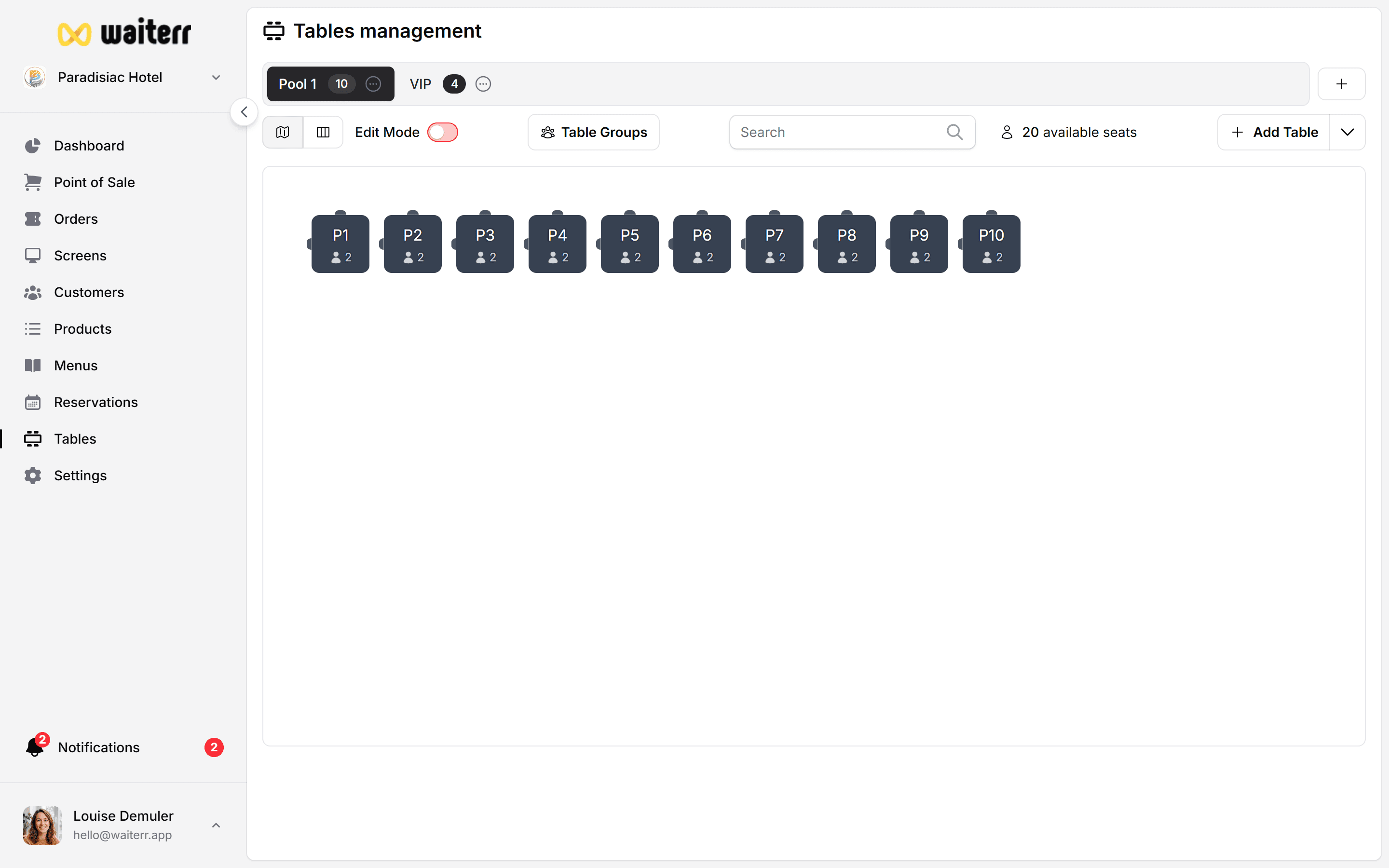
Using the Layout Editor
Adding a Table
Click Add Table, then configure:
- Table name (e.g., “T1”, “B3”, “VIP 7”)
- Number of seats
- Shape (square, round, rectangle)
- Size (small/medium/large)
- Orientation (rotation)
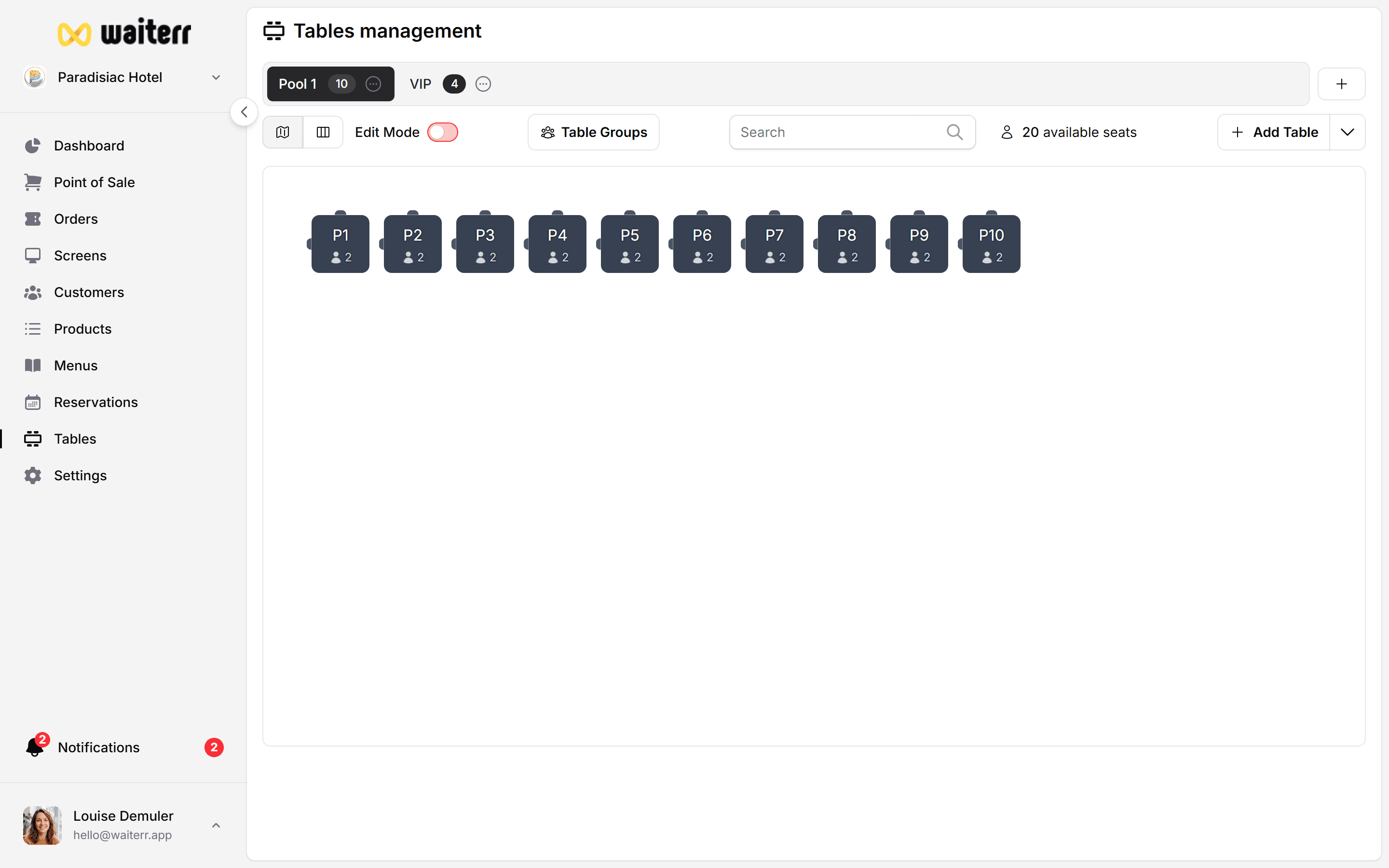
Moving Tables
Drag & drop tables to place them where they are physically located.
Resizing Tables
Use corner handles to adjust size.
Rotating Tables
A rotation handle (circular arrow) allows positioning tables freely.
Table Settings
Each table can have:
- Name
- Seats
- Shape
- Color (optional)
- Assigned QR code
- Assigned KDS station (future feature)
Table Status in Real Time
When orders are active, tables show:
- Current order number
- Time elapsed since first item sent
- Server assigned (future module)
Color coding:
- 🟢 free
- 🟡 active
- 🟠 long active (slow service risk)
- 🔴 urgent / waiting too long
Managing Table Types
You can create:
- Standard tables
- Standing bar tables
- High tables
- Family tables
- Party/event tables
Best Practices
💡 Group tables logically (left side = terrace, right side = inside)
💡 Use short table names (T1, T2, etc.)
💡 Keep spacing realistic for QR placement
Related Pages
Last updated on